Delete transcript history or your account
Saved transcript history belongs to your Verli account. Read the options below before deleting anything: closing your account also removes your access and remaining minutes.
Which Verli are you using?
Keep your account and remove history
Verli currently has no button to delete individual saved transcripts or clear only history. To request removal of saved history while keeping your account, email support@verli.app from your account email address and say you want only your transcript history deleted. Do not delete your account for this option.
To stop saving future transcripts, open Settings, turn off Save meeting transcripts, and close Settings. This does not erase transcripts already saved.
Before you close your account
Account deletion permanently removes your sign-in profile, saved transcripts and transcript segments, history-saving preference, billing account, remaining minutes, usage history, and account-linked sharing and marketing data. You cannot undo it.
Cancel an Apple App Store subscription separately in your Apple account subscription settings. Account deletion does not stop its auto-renewal. Export anything you want to keep first. Downloaded files and unsynced recovery copies on your devices are not erased by server-side deletion.
Delete your account and saved history
In a browser, open https://app.verli.app/account/delete and sign in with the same account you use in Verli. In the desktop app you can also open Settings and choose Delete account. The browser steps below are the same for Windows, Mac, Chrome, and the web.
Check the email shown next to Signed in as. Make sure it is the account whose saved history you want to remove. Read what will be deleted before continuing.
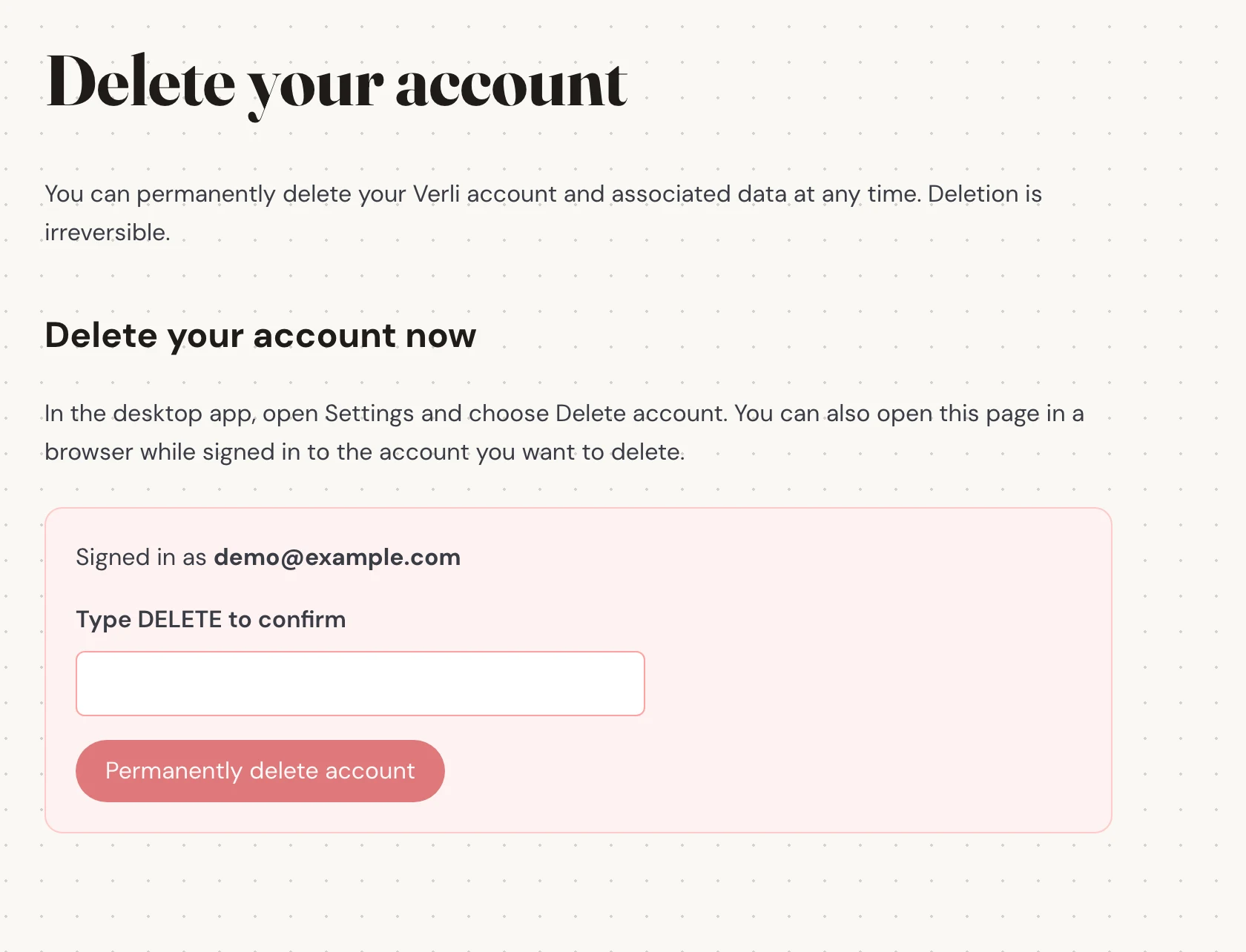
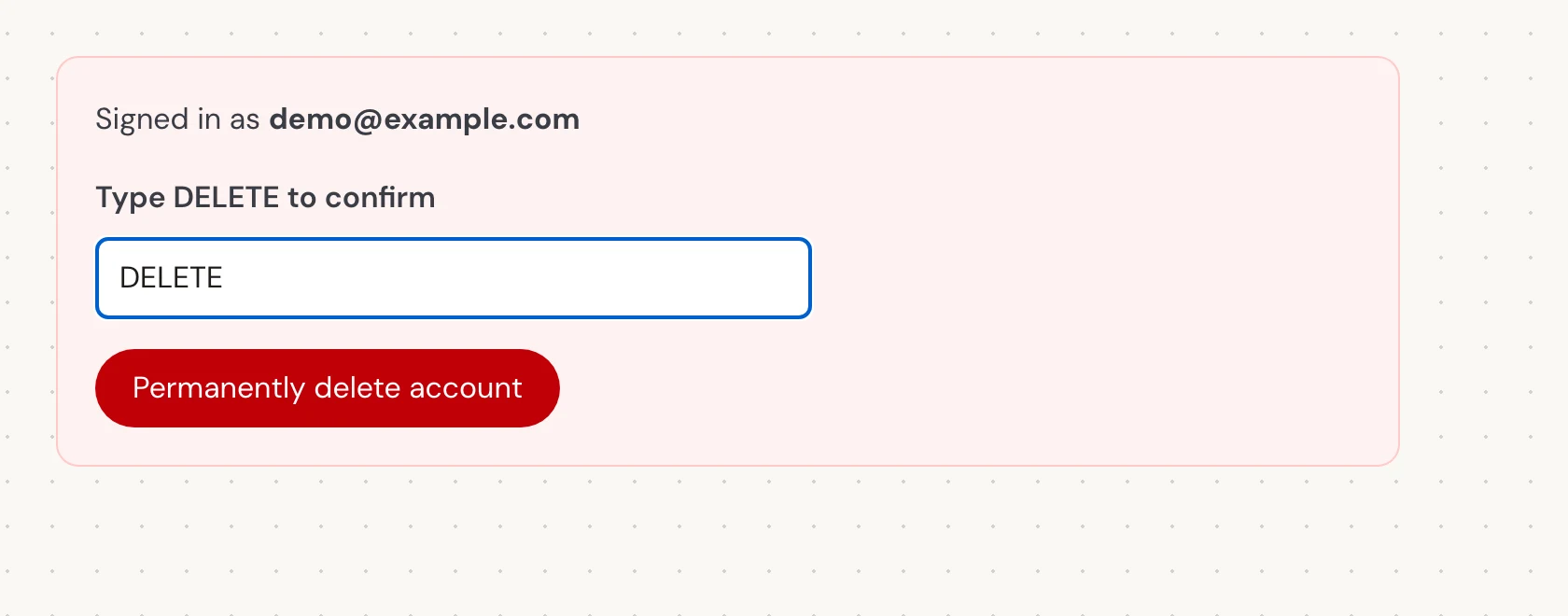
In Type DELETE to confirm, enter the exact uppercase word DELETE, even if you use Verli in another language. Then select Permanently delete account. This permanently closes the account and deletes its saved history.
Check the result
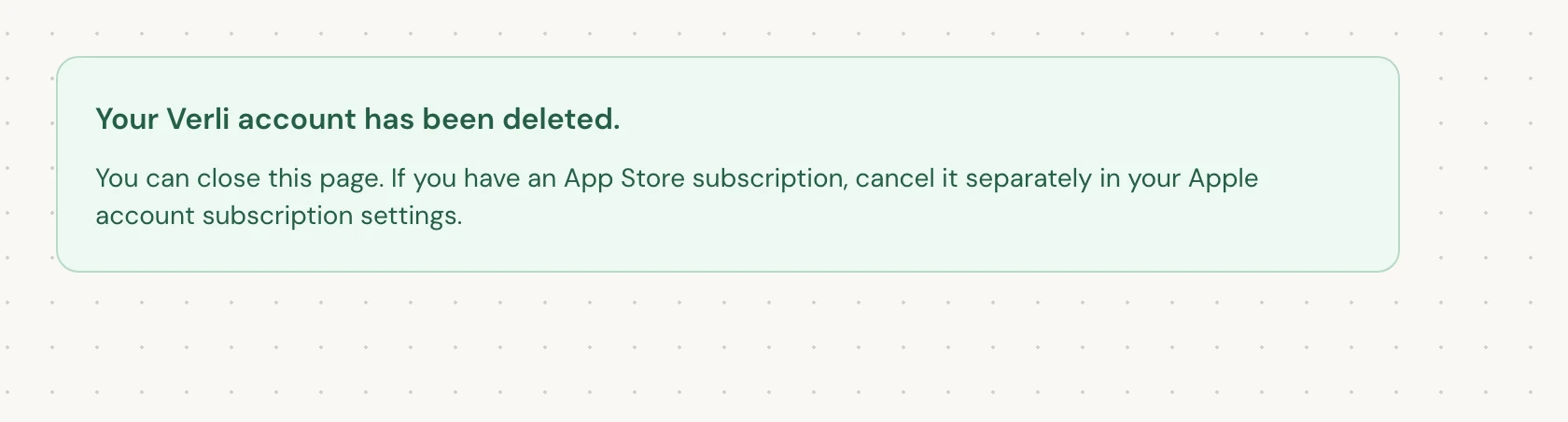
Your Verli account has been deleted. means deletion has completed. You can close the page.
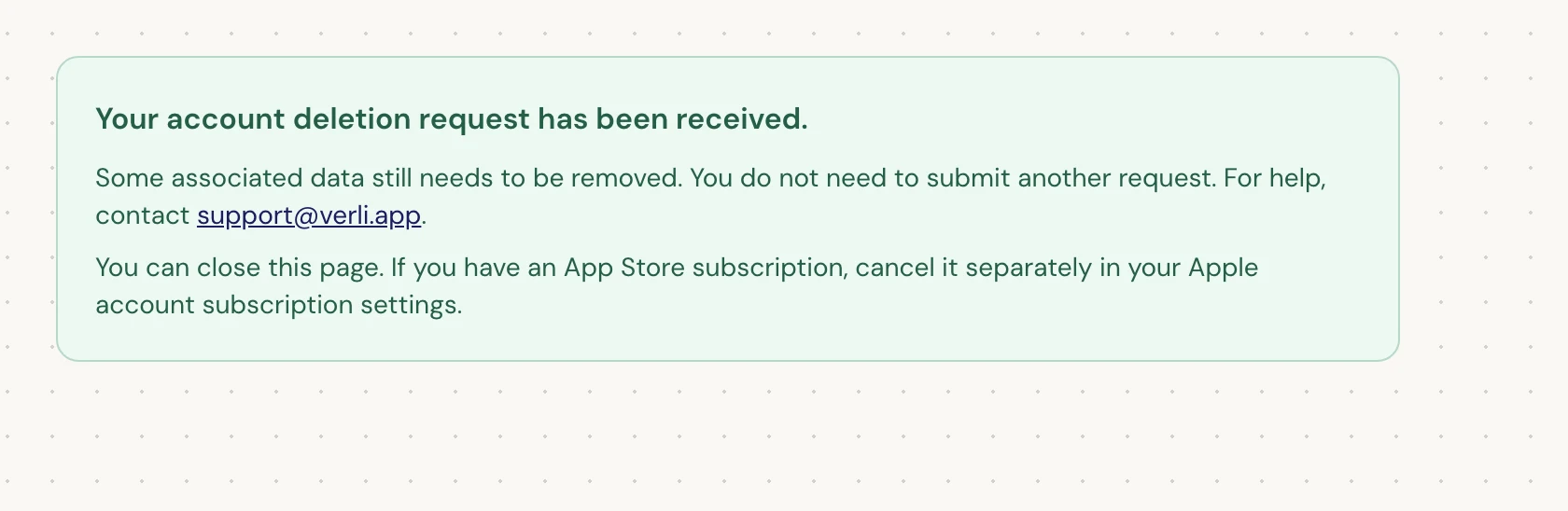
If you see Your account deletion request has been received., your request was accepted and some cleanup is still pending. Do not submit another request. You can close the page. Contact support@verli.app if you need an update.
If you cannot sign in or see an error, email support@verli.app from the account email address. Tell us whether you want history-only removal or full account deletion.
Still stuck?
Send us a message from the support page. Tell us which Verli you use and what you see on screen, and we'll help you sort it out.
Contact support