Interpreting practice
Prepare an interpreting glossary and review practice audio
For glossary practice, Verli captures current audio, showing original and translation together.
Choose a working pair like English and Spanish, select the correct audio source, optionally add a glossary first, then copy your checked notes.
Step 1: Prepare Your Practice Session
Start with an authorized practice exercise. Keep your master glossary in your own files and use approved equivalents.
Set your working pair as Language 1 and Language 2, like English and Spanish. It detects which is spoken and translates both ways, so neither is fixed.
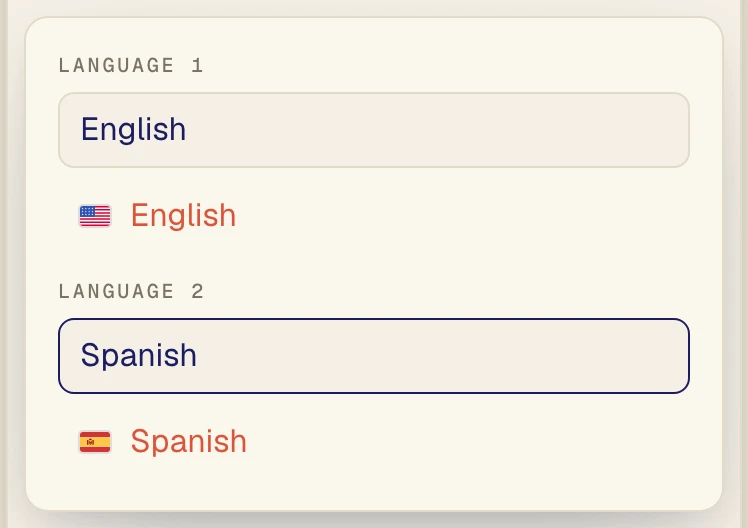
Choose the languages: English (1) and Spanish (2) are shown as an example pair.
Step 2: Enable the Knowledge Base
Open Assistant, then turn on the Knowledge base switch in the AI Assistant panel before you capture anything.
Optional hints help guide recognition and translation, but they never certify correctness.
Select the Assistant button (1).
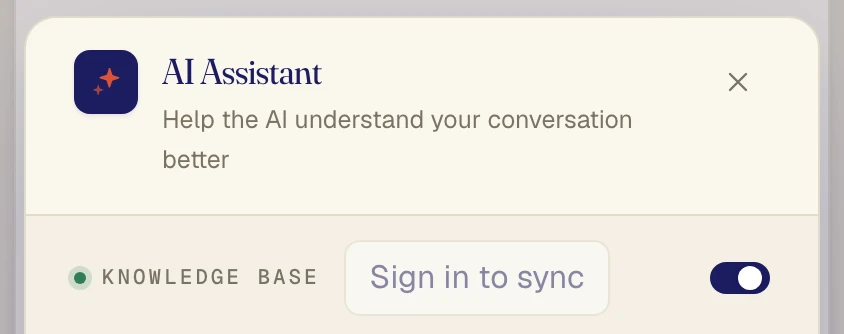
The Knowledge base toggle (2) is set to ON.
Step 3: Add Context
The screenshot shows Words to recognize with appointment, invoice, and service address, all synthetic practice terms. Preferred translations lists invoice as the Original; Translation stays empty until you add your approved equivalent.
Add exercise context in Background notes (not pictured). Stop and restart so edits apply to the next capture. Drafts stay local; signed in, Create new preset saves and syncs context only.
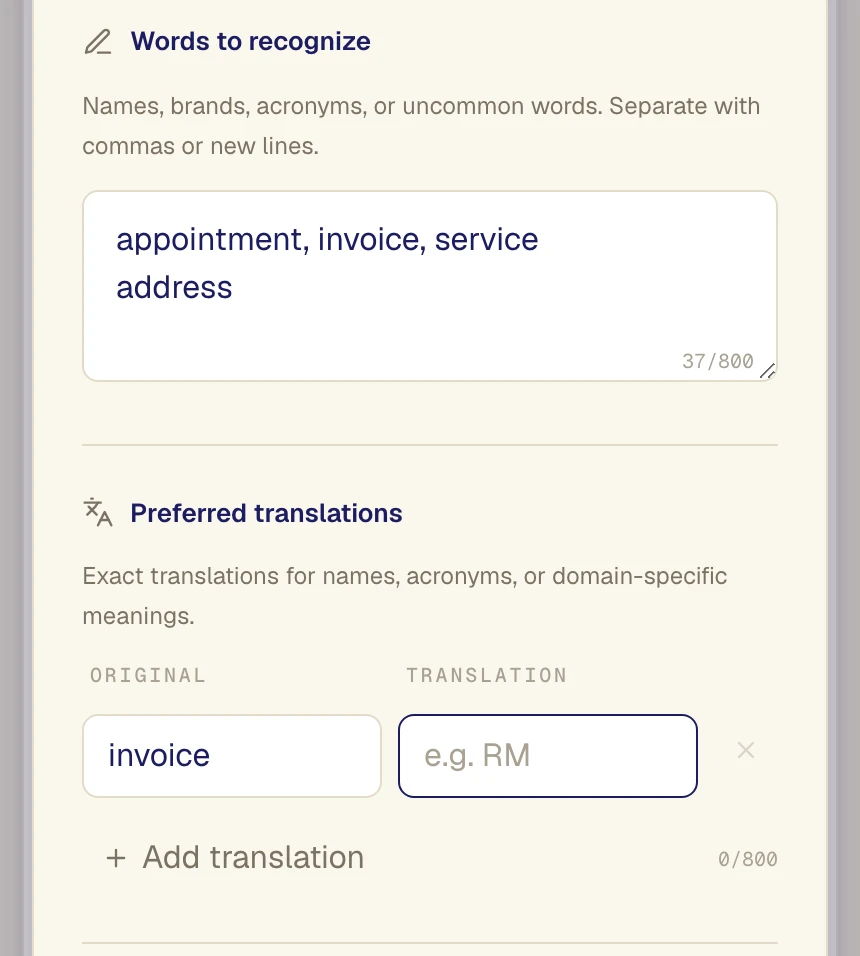
Words to recognize (1) lists synthetic practice terms: appointment, invoice, service address. In Preferred translations (2), the original term invoice has an empty Translation field, awaiting an approved equivalent.
Step 4: Choose Your Audio Source and Start
For an authorized exercise on your computer, set Desktop audio ON and Microphone OFF. To capture your own rendition too, turn both ON for a Mix. If sound plays through a room speaker, use Microphone instead.
Press Start and share a Chrome Tab with audio. For a native program, use the Verli desktop app. System audio support varies by OS and browser, so see audio setup.
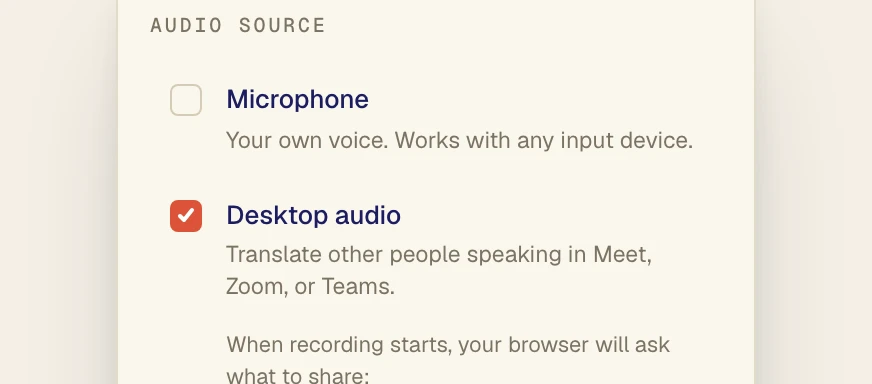
Example audio source settings for practice recording: Microphone turned off (1), Desktop audio turned on (2) to capture computer playback.
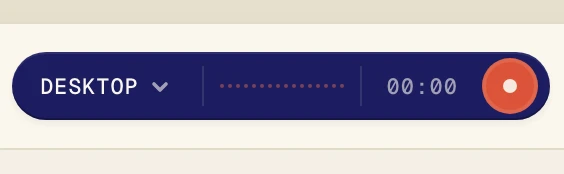
Select the Start button (1). Desktop is selected.
Step 5: Verify Against the Reference
Compare original text above each translation against the authorized recording or reference. The Hello world./Hola mundo. screenshot is a synthetic layout demo, not an interpretation result.
Manually check appointment dates and times, invoice reference digits, and street names, numbers, and units. Hints never prove surrounding passages are correct. Follow assessment or client rules.

Synthetic sample: the original text Hello world. (1) appears with its translation Hola mundo. (2).
Step 6: Copy, Save, and Review Your Transcript
Tap Copy transcript to copy instantly and open options. Toggling timing, speaker, or language copies again automatically. Paste into exercise notes with the source link.
Saving is on by default unless you opt out in Settings. Saved History keeps original and translation, without search or folders. Verli cannot replay raw audio. An on demand meeting style summary is copyable but not saved as a learning pack.
Audio and transcripts are processed in the cloud. A summary sends the transcript and any enabled context to Gemini after a disclosure. With Auto-detect, the start of the transcript also goes to OpenAI to pick the summary type. Details are in the Verli privacy policy.
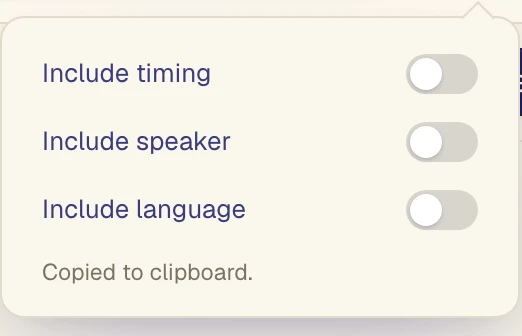
Copy options Include timing (1), Include speaker (2), and Include language (3) are all OFF.