Choose what Verli listens to
Verli can listen to your microphone, to sound playing on your computer, or to both. Picking the right one is the most important setting in Verli.
Which Verli are you using?
Showing steps forWindows appMac appChrome extensionWeb browser
Open the audio source menu
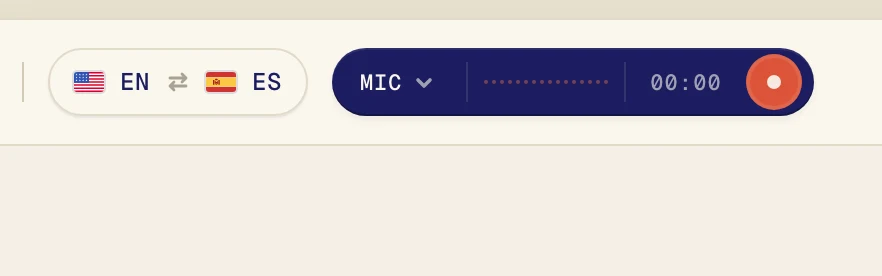
Click the dark pill next to the record button to open the Audio source menu.
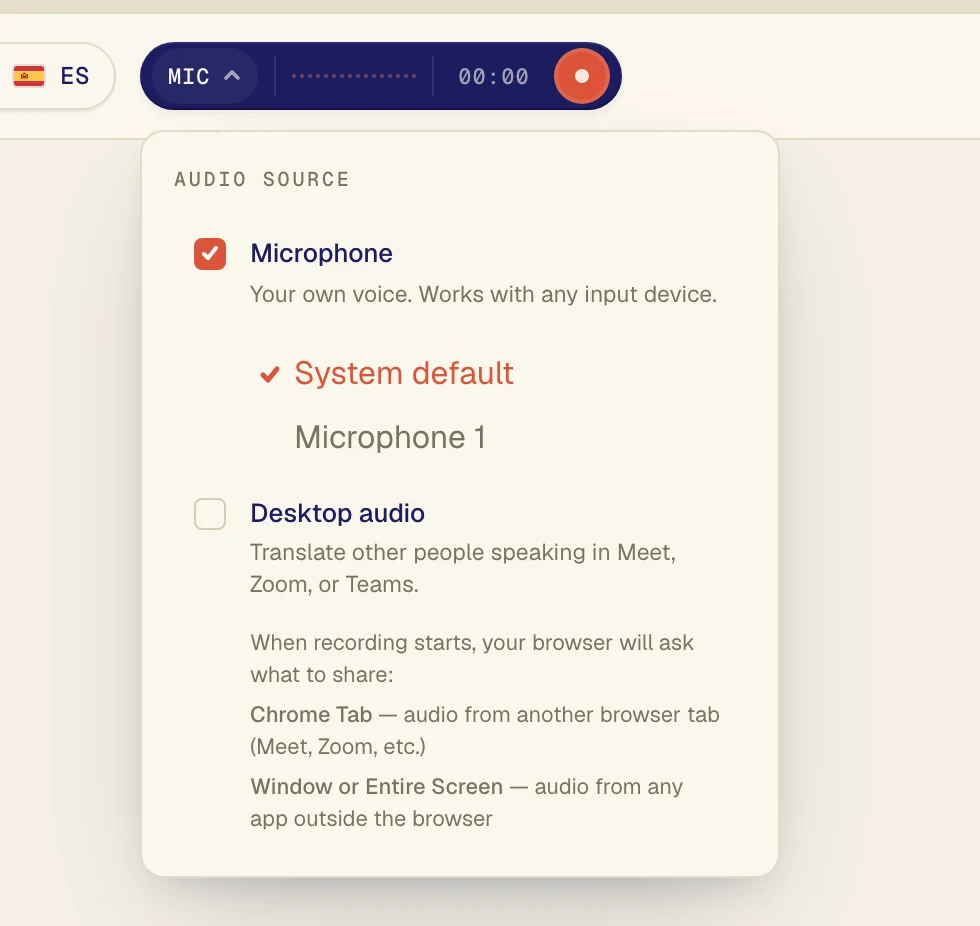
The menu has two options. Click an option to turn it on or off. A check mark means it's on.
Which one to pick
Microphone: your own voice, or people talking in the same room. Use it for in-person conversations and lectures you attend in person.
Desktop audio: sound playing on your computer. Use it for Zoom, Google Meet, and Teams calls, YouTube, online classes, and podcasts.
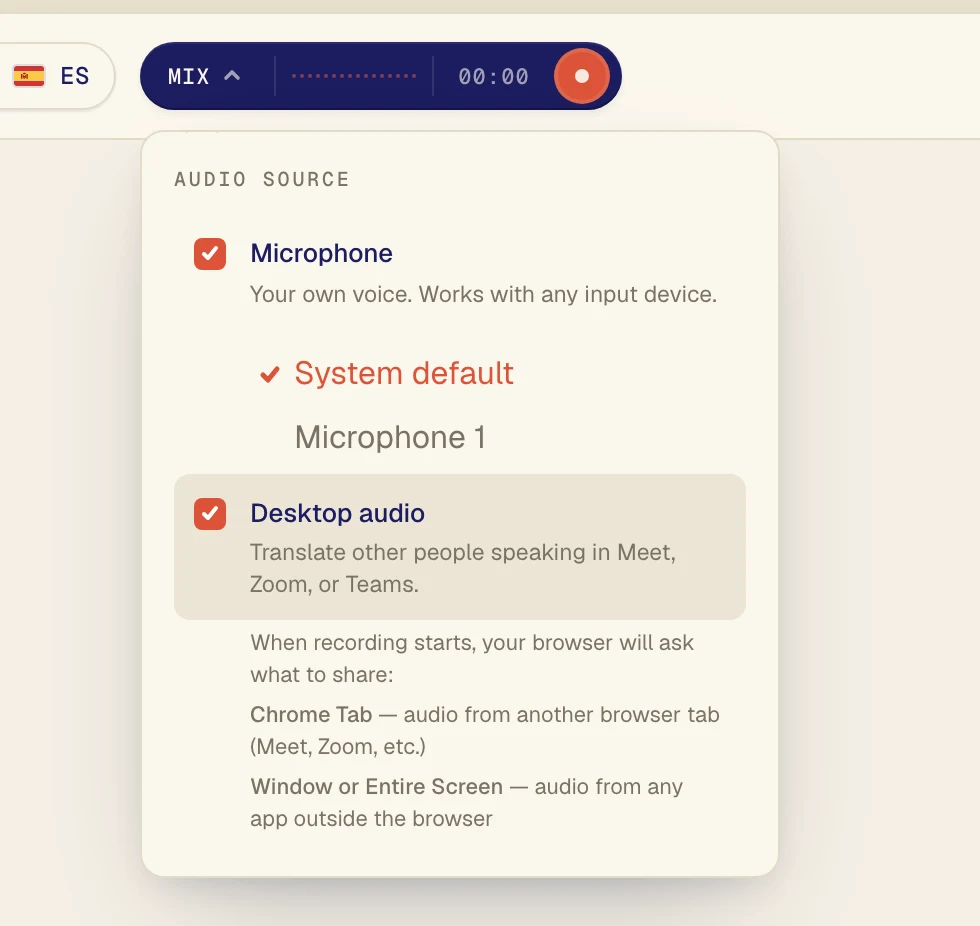
Both: calls where you also speak. Verli translates the other people and you.
Using both at once
Check both options. The pill now says Mix.
What Verli starts with
Verli starts with only Microphone turned on. Turn on Desktop audio whenever you want to translate sound from your computer. Verli remembers your choice next time.
What Verli starts with
The Chrome extension starts with Desktop audio on and Microphone off, and the pill says Chrome Tab. The extension can only hear sound from Chrome tabs, so the call or video must play in Chrome.
Choosing a microphone
When Microphone is on, a list of your microphones appears under it. System default uses the one your computer is set to. If you use a headset, pick it by name.
Still stuck?
Send us a message from the support page. Tell us which Verli you use and what you see on screen, and we'll help you sort it out.
Contact support