Manage your Verli team
You manage your team on your team page, which is only in the web app: open https://app.verli.app/team, or choose Team in your account menu. Your people can record in any Verli app.
Start a team
On the pricing page, choose For companies, then Start a team.
Name your team and choose Monthly or Yearly billing. Yearly gives you 2 months free.
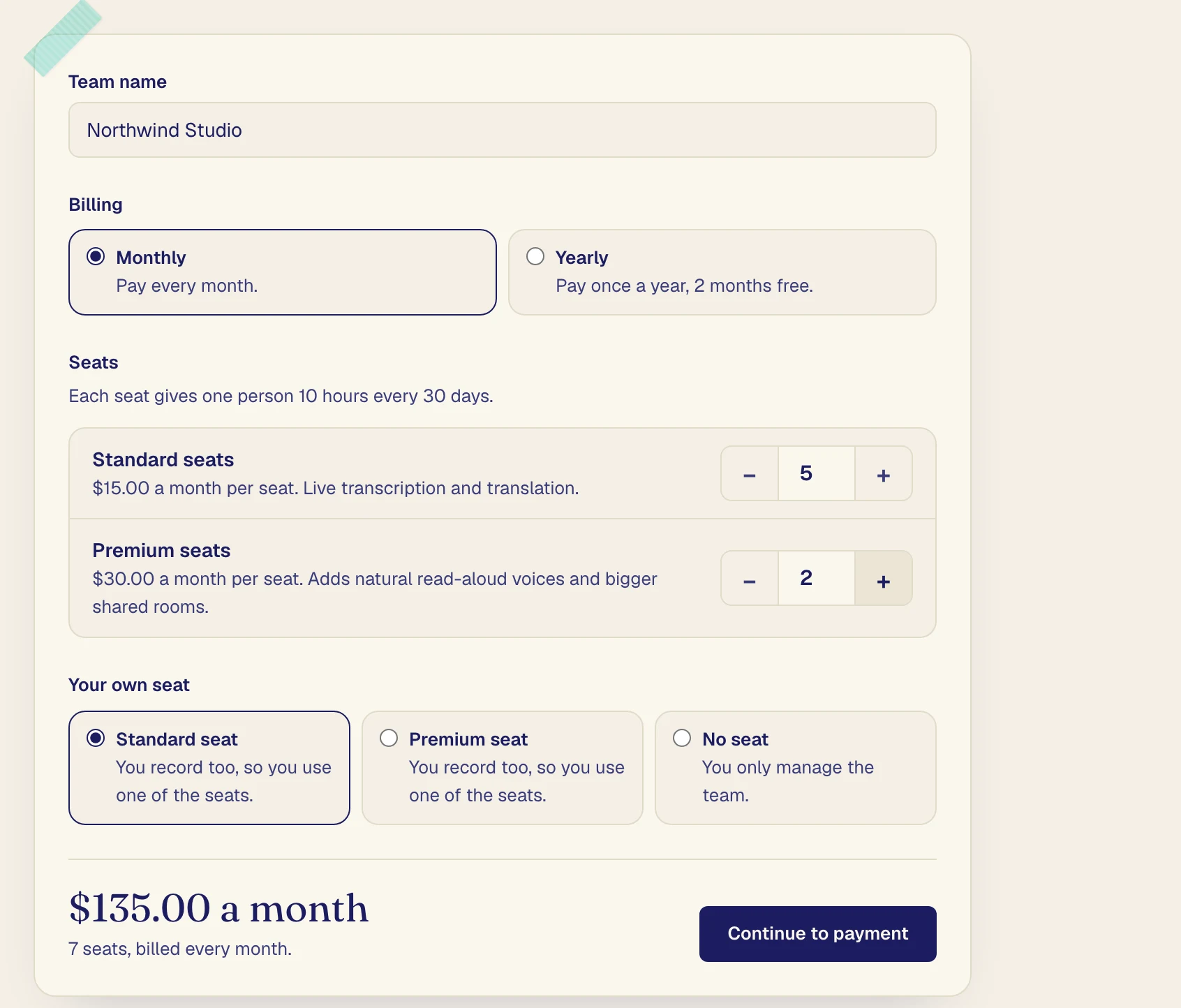
Choose how many Standard and Premium seats to buy, one for each person who records.
Under Your own seat, pick a seat if you record too, or No seat if you only manage the team.
Click Continue to payment and pay by card.
If you take a seat, your own plan stops renewing if you pay for it by card. If you pay through the App Store or Google Play, cancel it there.
After you pay
Your team page opens, and you are its first admin.
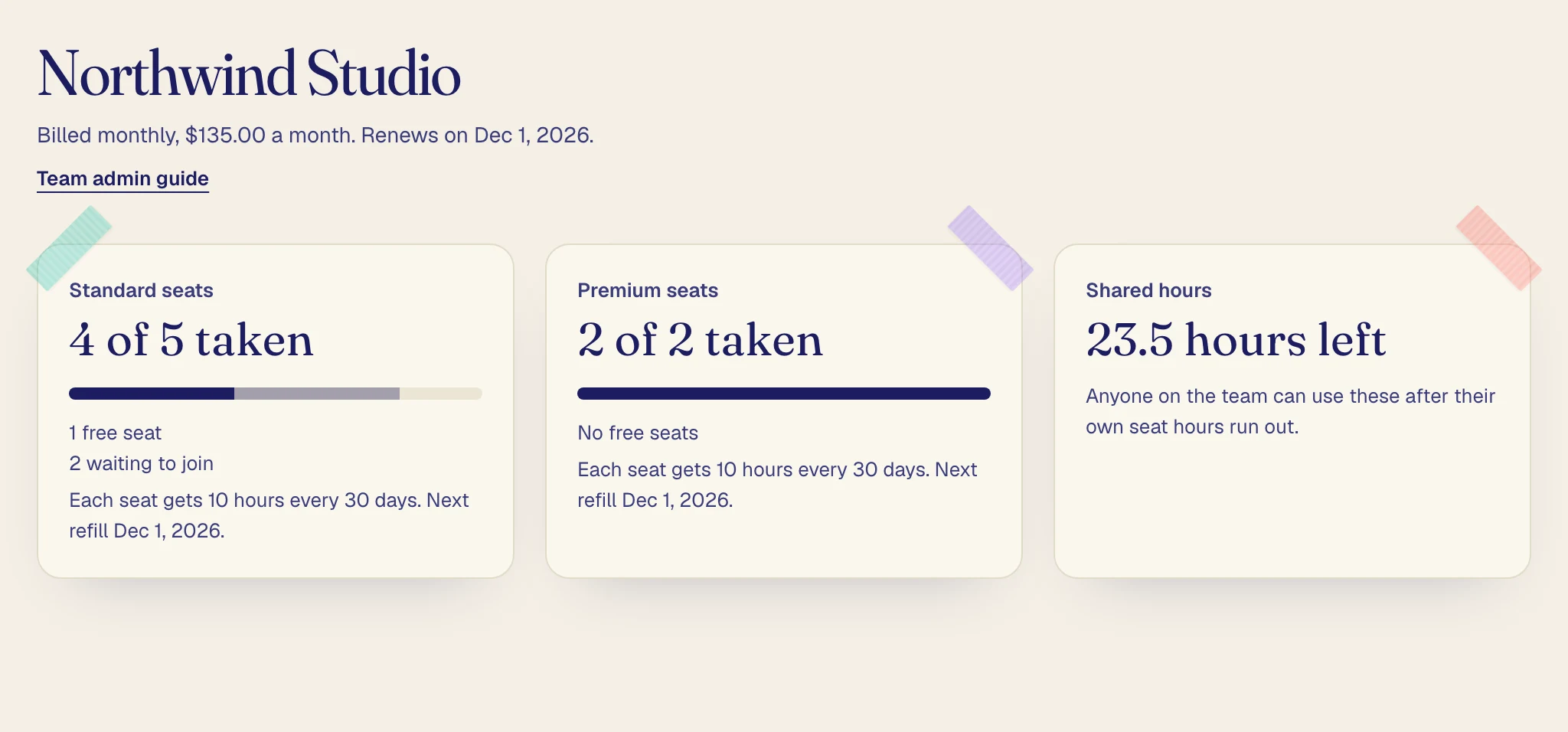
The cards show how many seats are taken, when seat hours refill, and how many Shared hours are left.
Invite people
Under Invite someone, enter an email, choose a Seat and a Role, and click Send invite.

If the email is already verified on a Verli account, they join right away. Otherwise the email asks them to create an account with that address, or to verify it on their account, and they join once it's verified.
Invites that are waiting
Invites not accepted yet are listed under Waiting to join. An invite with a seat holds that seat.
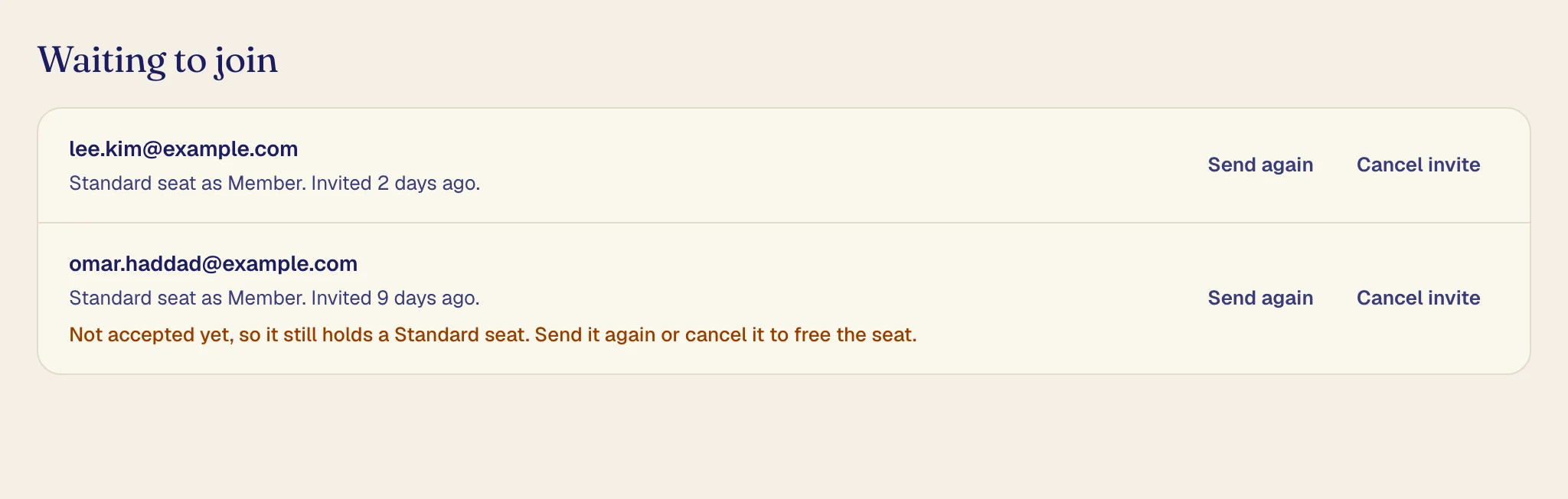
Send again emails the invite again.
Cancel invite cancels it and frees any seat it holds.
Manage people
Each row under People shows the person's seat, role, and hours used in the current 30 days.
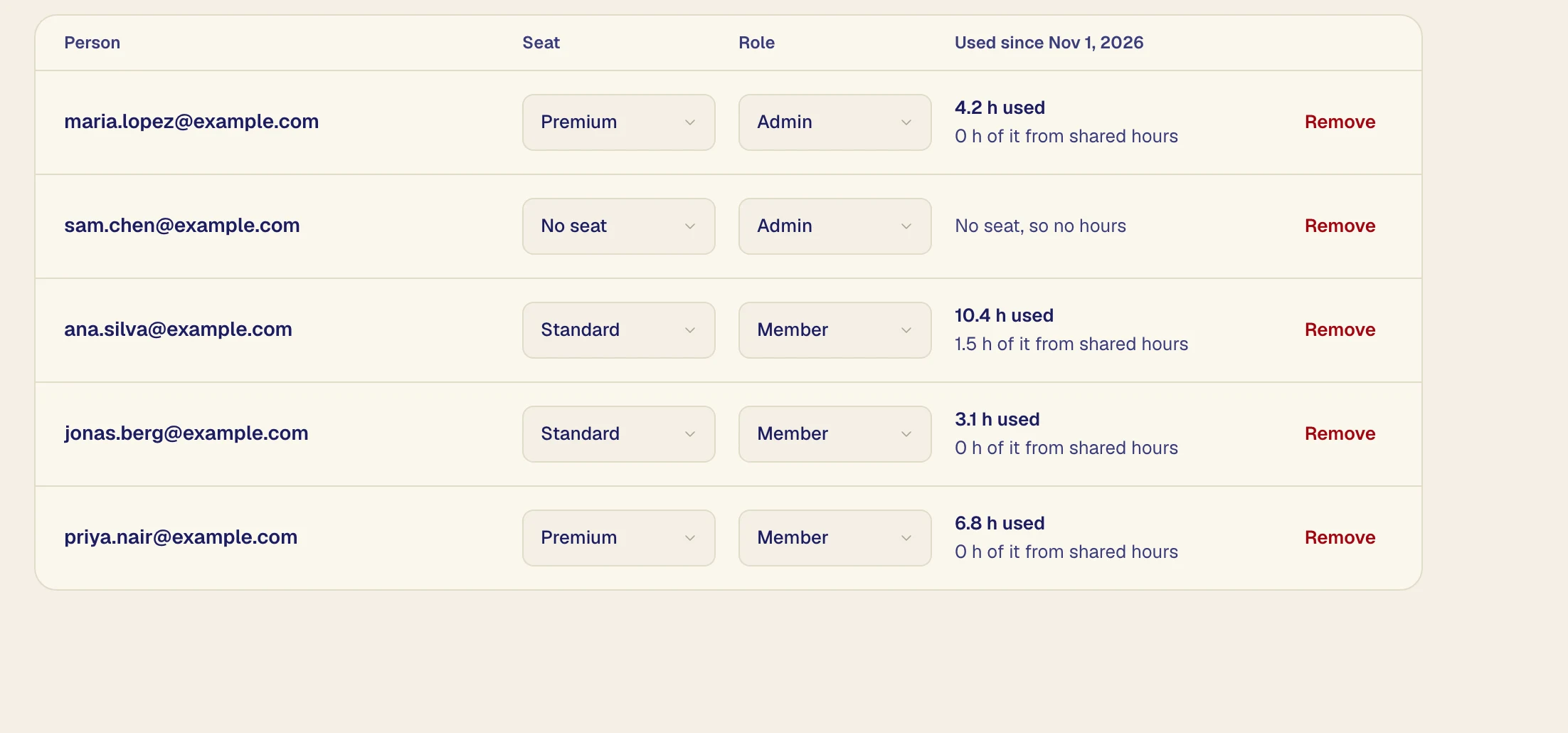
To swap between Standard and Premium, change their Seat. Their remaining hours move with them.
To make someone an admin, set their Role to Admin. Only admins can have No seat, and a team always needs one admin.
To remove someone, click Remove, then Remove from team. They lose their seat at once and keep their transcripts.
Download usage (CSV) saves everyone's hours as a spreadsheet. Admins never see what people recorded.
Change the number of seats
Click Change seats, set the numbers, and click Save seats.
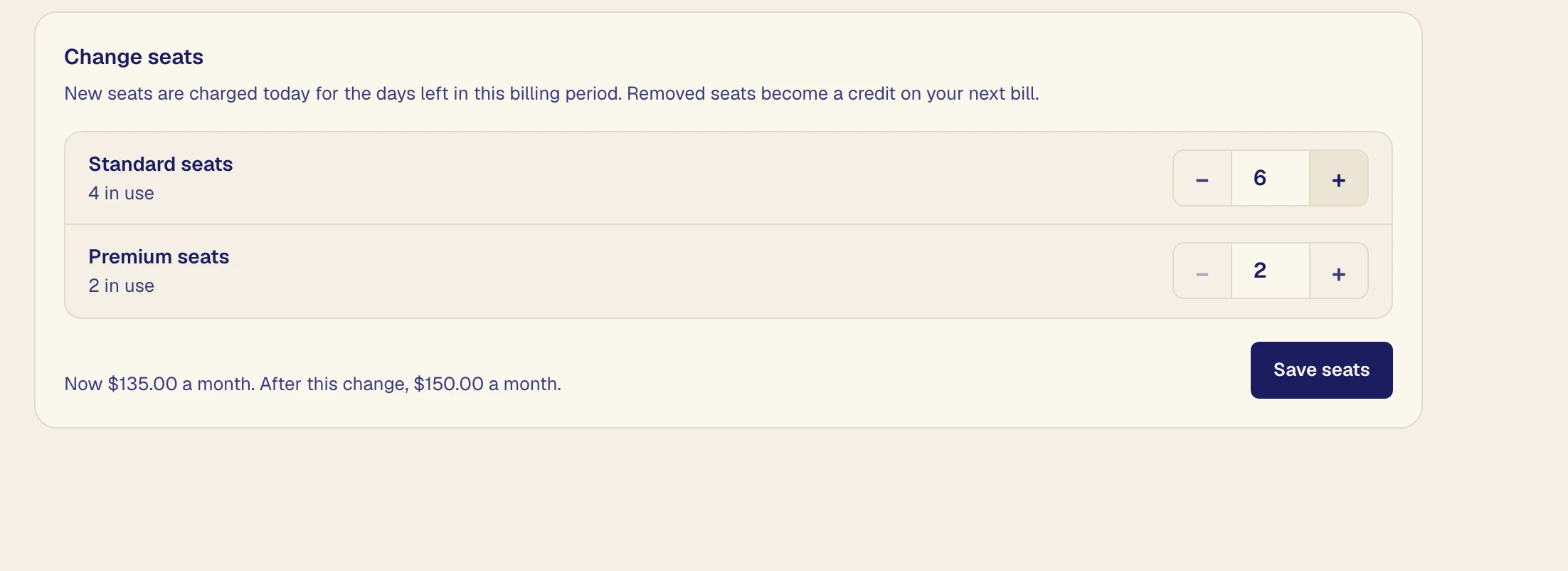
New seats are charged now for the rest of the billing period. Removed seats become a credit on your next bill. You can't go below the seats in use, and waiting invites count as in use.
Hours
Each seat gets 10 hours every 30 days, and unused hours don't carry over. Shared hours come in 10-hour packs for $20 that last a year. A person with a seat uses them once their own hours run out, unless they pay for their own Verli plan.
Click Buy shared hours, choose how many packs, and click Continue to payment.
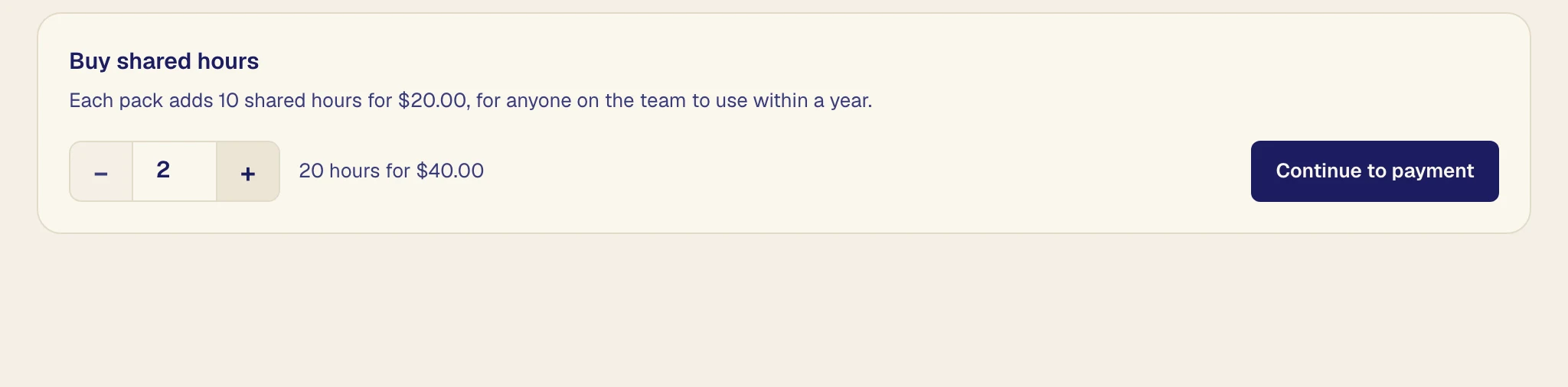
When someone's own hours and the shared hours are used up, they can't record until their hours refill or you buy more. Members who only have their team seat see which admins to ask.
Emails you get
Every admin gets an email when shared hours run low, when someone runs out of hours, when a payment fails, and before and after the team ends.
Billing and invoices
Click Billing and invoices to change the card, see invoices, or cancel.

Switch between monthly and yearly
Click Switch to yearly billing, then Switch to yearly.
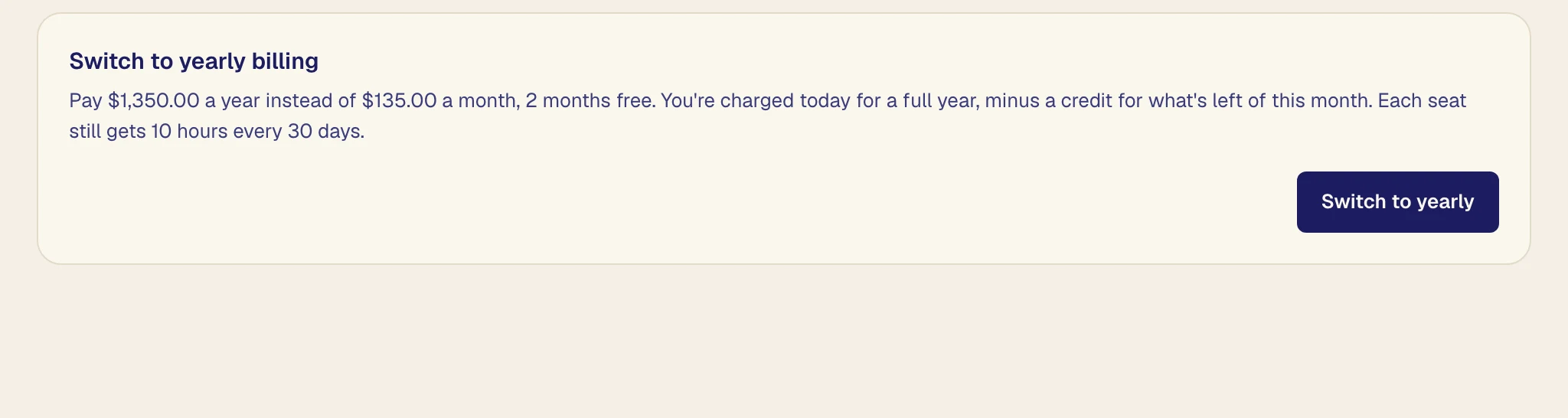
You pay for the year today, minus a credit for the rest of this month. To go back, click Switch to monthly billing, then Switch to monthly. It starts when the paid year ends, and Keep yearly billing undoes it.
If a payment fails
Your team page shows a warning. Click Update card.
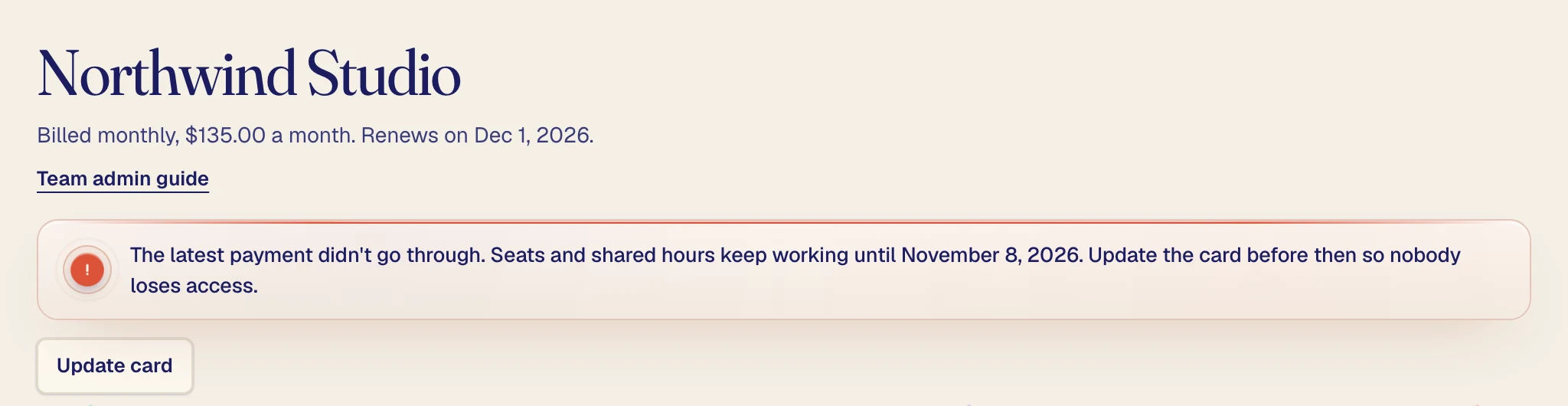
Seats and shared hours keep working for 7 days after the payment was due, then pause until it is paid.
End your team
Cancel under Billing and invoices. The team keeps working until the paid period ends, and you can turn renewal back on until then.
When it ends, everyone loses their seat and any unused shared hours, but keeps their account and transcripts. If your own plan stopped renewing for the team, it doesn't restart on its own.
Teams billed by invoice
If your team pays by invoice, the team page has no billing buttons, because seats and shared hours follow your invoices. Everything else works the same.