Verli is listening, but no text appears
If Verli shows Listening... but no words appear, Verli almost always can't hear the audio you want translated. Go through these checks in order.
Which Verli are you using?
Showing steps forWindows appMac appChrome extensionWeb browser
Check what Verli is listening to
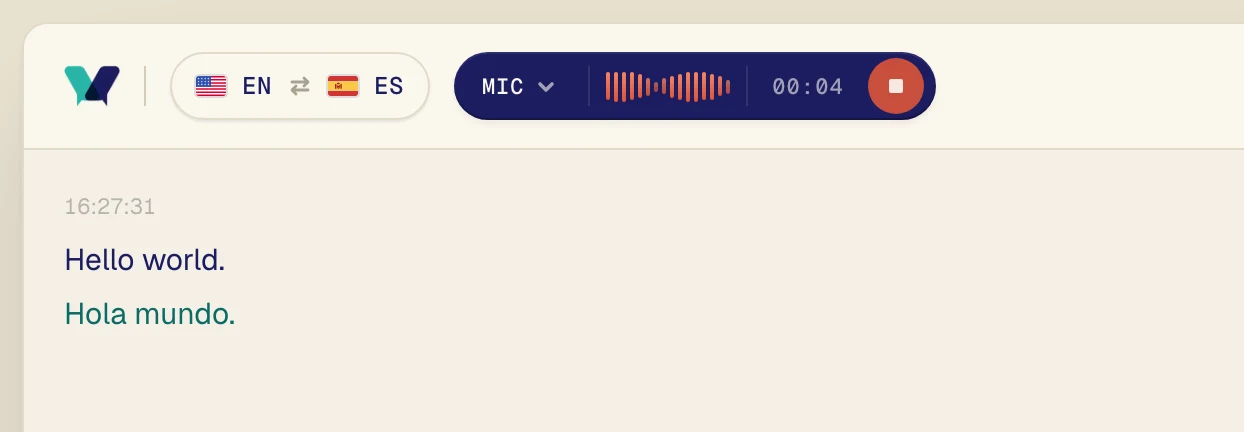
Look at the dark pill next to the record button. It shows what Verli hears: Mic (only your microphone), Desktop (sound playing on your computer), or Mix (both). In the Chrome extension, Desktop is called Chrome Tab.
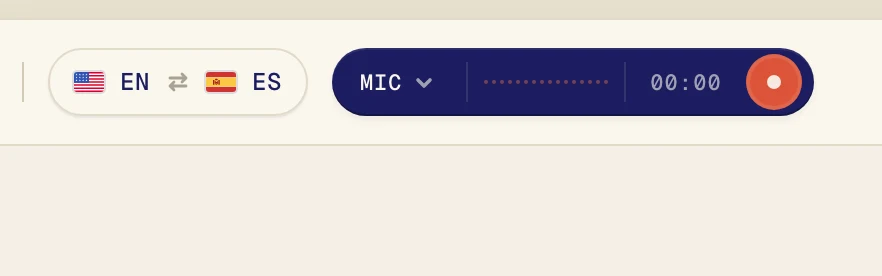
If you're translating a video, class, or call that plays on your computer and the pill says Mic, that's the problem. Verli is listening to your microphone, not to your computer. This is very common with headphones, because the microphone can't hear them.
Turn on Desktop audio
If Verli is recording, click the red stop button first.
Click the dark pill next to the record button to open the Audio source menu.
Click Desktop audio so it has a check mark. Leave Microphone on only if you also want your own voice translated.
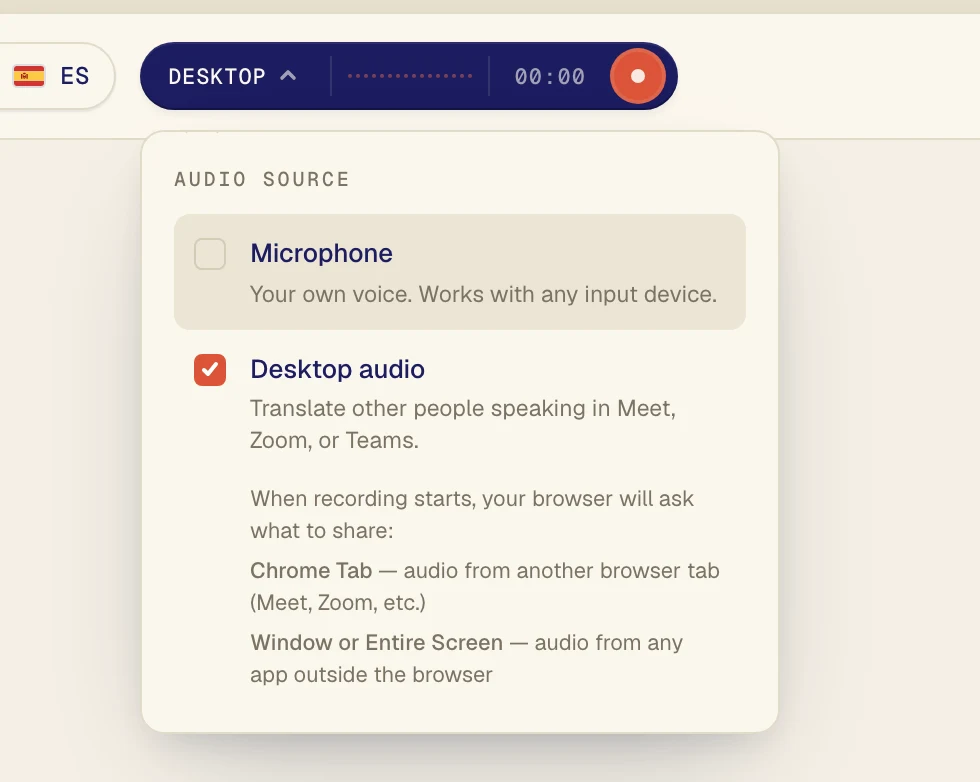
The sound has to play in a Chrome tab, like Google Meet, YouTube, or your course website. Open it in another tab first.
Click the record button to start again.
Verli shows Enable recording. Click Continue.
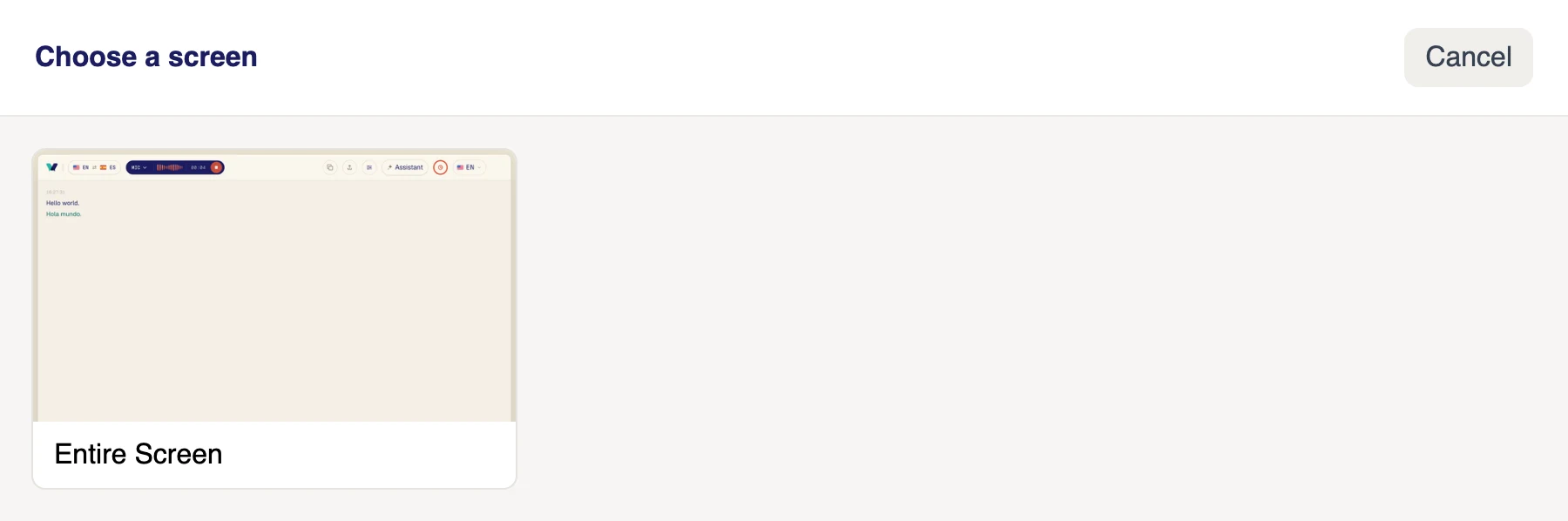
In the Choose a screen window, click the screen. Verli hears all sound playing on your computer, so if you have more than one screen it doesn't matter which one you pick.
Make sure the sound plays on this computer, through speakers or headphones that are turned on in Windows.
Verli shows Ready to record?. Click Continue.
The first time, macOS asks whether Verli can record system audio. Click Allow. There is no window to pick from: Verli hears all sound playing on your Mac.
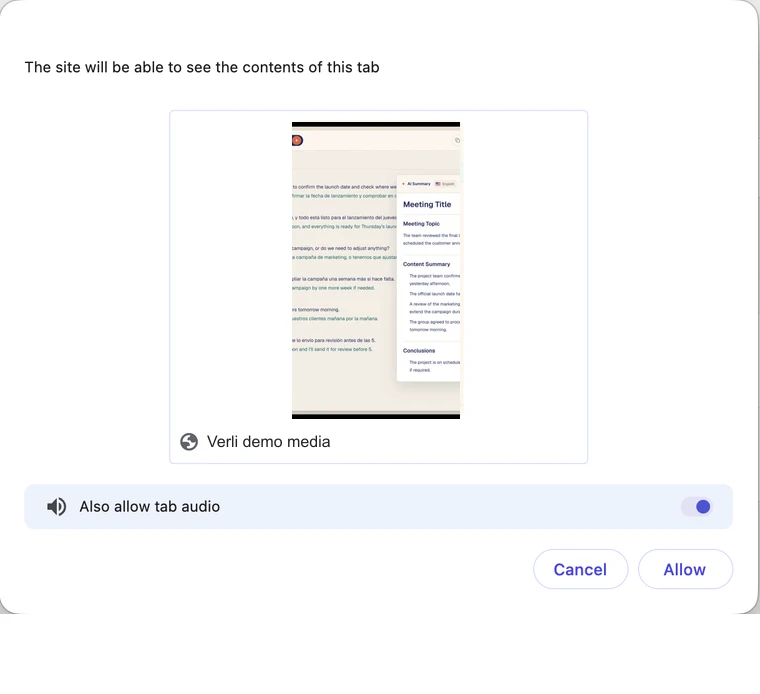
Chrome opens its sharing window. Click the tab that plays the sound, make sure the tab audio switch is on, then click Allow (older Chrome versions say Share).
If your browser asks to use the microphone, click Allow.
Your browser opens its sharing window. For a call or video in another tab, choose Chrome Tab, click the tab, and turn on Also share tab audio. For an app outside the browser, like the Zoom or Teams app, choose Entire Screen and turn on Also share system audio. Then click Share.
Don't choose Window: browsers don't share a window's sound. If you don't see a system audio switch (common on Mac), share a Chrome tab instead, or use the Verli Mac app.
Play the audio. Within a few seconds the original words appear, with the translation right under them.
Check the two languages
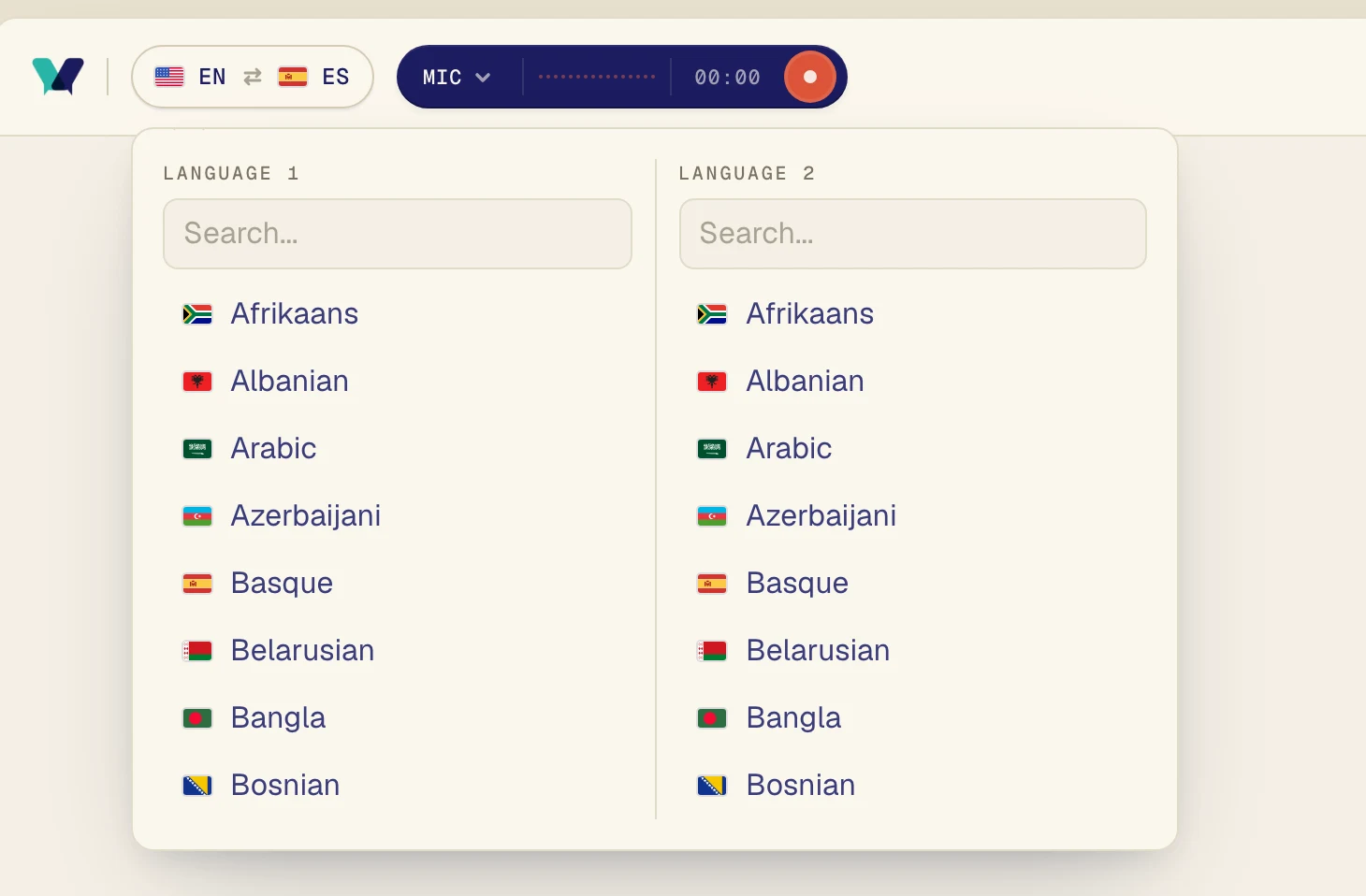
Verli translates between the two languages in the language pill. One of them must be the language being spoken. For a class in Portuguese that you want to read in Spanish, pick Portuguese and Spanish.
Click the language pill in the top left corner.
Pick one language under Language 1 and the other under Language 2. You can type to search. Verli translates both ways, so the order doesn't matter.
Mac: allow System Audio Recording
If Verli says System Audio Recording permission is still not granted, macOS is blocking it.
Open System Settings > Privacy & Security > Screen & System Audio Recording.
Turn on Verli. If you see a section called System Audio Recording Only, turn it on there.
Quit Verli and open it again, then press record.
Windows: if Verli switches to the microphone
If you see System audio couldn't start, so Verli is continuing with microphone only, Windows didn't give Verli the computer's sound.
Close other apps that may be using your speakers or headphones.
Check that a sound output is turned on: click the speaker icon in the taskbar and make sure you can hear sound.
Restart Verli and press record again.
Translating people in the room?
Then Verli needs your microphone, not Desktop audio. If the pill says Mic and still nothing appears, follow the microphone guide below.
Still stuck?
Send us a message from the support page. Tell us which Verli you use and what you see on screen, and we'll help you sort it out.
Contact support