Interview guide
How to follow a job interview in English with live captions
To follow a job interview in English, read live captions of each question on your own screen, with a translation into your language under each line. Verli makes those captions from the sound of the call on your computer, and it never joins, speaks or answers for you.
Use it only where the employer allows it, and tell the interviewer at the start.
Check the employer's rules first
Read the interview invitation and any candidate guide the employer, school or fellowship sent you. Some ban AI tools, recording or transcription during interviews. If yours does, do not use Verli or any similar tool in that interview.
If the rules say nothing, ask the recruiter in writing a few days before. A short line is enough: "English is not my first language. May I use live captions on my own screen during the video interview to follow the questions?" Keep the reply.
Captions help you catch the question. The answers still come from you, so prepare as you would without them.
Tell the interviewer at the start
Even with the recruiter's yes, say it once when the call begins. One sentence works: "I am a non-native English speaker, so I use live captions on my screen to follow along. Please tell me if you would rather I did not."
Live captions are a transcript of the interviewer's voice. Some employers, and the law in some places, require consent before anyone records or transcribes a conversation. Get that consent first. If the interviewer says no, close Verli and continue without it.
Verli saves transcripts to your account by default, and you cannot delete a single saved interview later. So for the real interview, turn off Save meeting transcripts in Settings before the call, unless the interviewer agreed to a saved transcript. The switch applies to new recordings only. With saving off, nothing from the call appears in History.
Live captions for a job interview in Zoom, Meet or Teams
Zoom, Google Meet and Microsoft Teams have built-in captions, usually behind a CC or Captions button in the meeting controls. Windows 11 and macOS also have free system Live Captions for sound the computer plays. Try these first. What they offer depends on the host's plan, the meeting settings and your system, so you may not get a translation into your language or a transcript to read later.
Verli adds interview captions with real-time translation in 60+ languages. The Mac and Windows apps caption any call your computer plays, and the web app works best with a call in a Chrome tab. Each English line has its translation under it. If Save meeting transcripts is on, the text stays in History after the call. Setup for each call app is in the guides for Zoom, Google Meet and Microsoft Teams.
Choose English and your language
Sign in first, because recording needs a Verli account. Open Choose Languages and set Language 1 to English and Language 2 to your own language. Verli detects which of the two is being spoken, so the order does not matter.
If you only want English captions, open View settings and set Show to Original. Set it to Both to see your language under each line. Click A+ next to Font size to make the text bigger.
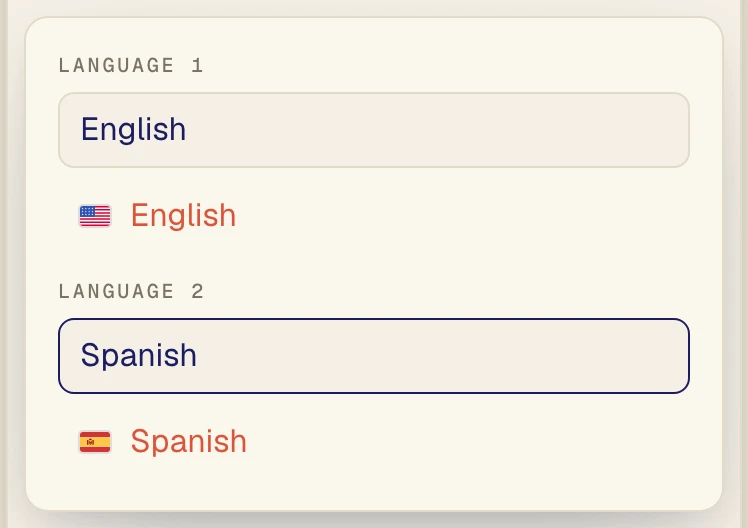
Language 1 is English (1) and Language 2 is Spanish (2). Pick your own language in place of Spanish.
Pick the audio for the questions and your answers
Open Audio source and turn on Desktop audio so Verli hears the interviewer through your computer. Microphone is already on when Verli starts. Leave it on only if the interviewer agreed to a transcript that includes your answers. Otherwise turn it off, and the pill reads Desktop. With both on, it reads Mix.
Wear headphones. Verli does not cancel echo on the microphone, so the interviewer's voice from your speakers can reach your microphone and get into the transcript.
- In the Mac or Windows app, Verli hears all sound playing on the computer, whatever call app you use. On a Mac, macOS asks for System Audio Recording access the first time. On Windows, choose any screen when recording starts, and make sure the call plays through an active output device.
- In the web app, if the call runs in a Chrome tab, choose Chrome Tab and pick that tab when the browser asks what to share. Turn on Share audio, then click Share.
- If you use the web app but the call app runs outside the browser, choose Entire Screen and turn on Also share system audio. Do not choose Window, because browsers do not share a window's sound. If there is no system audio switch, which is common on a Mac, download the Mac app instead.
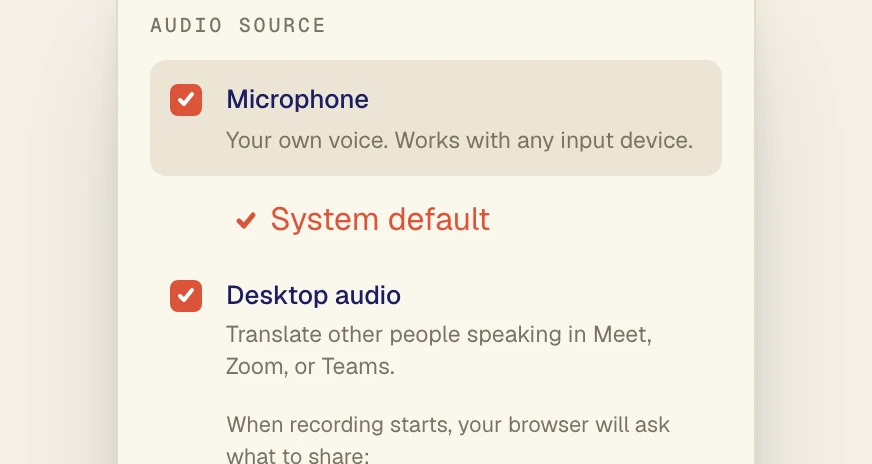
Microphone (1) and Desktop audio (2) are both on, so your answers and the interviewer's questions both reach the transcript. Turn Microphone off if you only want the questions.
Run a test call before the day
Do a full test on the same computer, headphones and call app you will use for the interview. Ask a friend to join a short video call, or play a recorded interview video. Click the record button, check that captions appear, then stop recording.
If no text appears, see what to do when no text appears. The audio source guide explains each option.
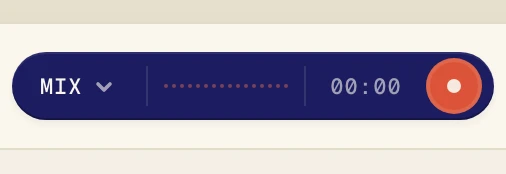
Mix is selected here. Click the record button (1) to start the test.
Add the names and terms you expect to hear
Captions often miss names and field terms. Before the interview, click Assistant and turn on the Knowledge base switch. Under Words to recognize, add the company, the interviewers' names, the team and the terms of your field.
Use Conversation details to describe the setting, for example a panel interview for a research role. Preferred translations keeps a term the way you want it in your language. Changes apply to the next call, so set this up before you start recording.
Check the spelling of every name against the invitation or the employer's website. The list helps recognition, but it cannot promise every name comes out right. The glossary guide for technical meetings shows how to build a short term list.
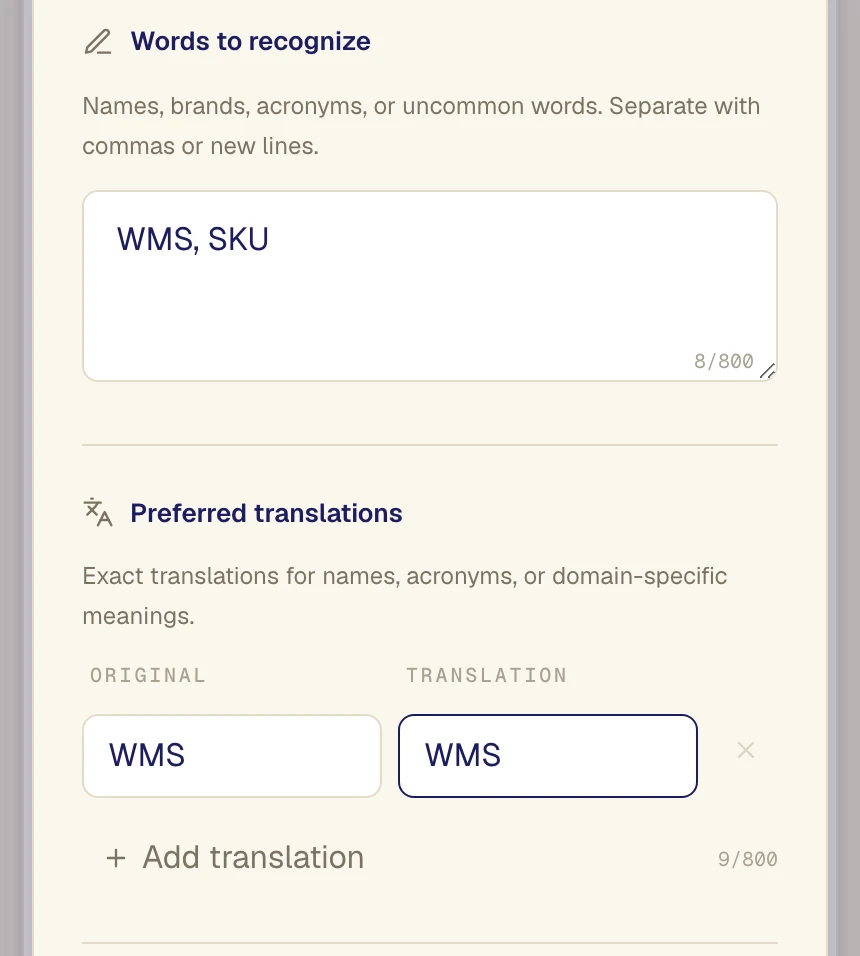
Example terms: WMS and SKU in Words to recognize (1), and WMS kept as WMS in Preferred translations (2). Put your own names and field terms here.
During the interview, read and keep listening
Captions arrive a moment after the words. Treat them as a backup for your ears. Reading while you listen can also slow down your answer, so keep your eyes on the camera and glance down only when you miss a word.
If the captions and what you heard do not match, ask. "Could you repeat the question, please?" is a normal thing to say in any interview. It is better than answering a question nobody asked.
In the Mac and Windows apps, Float translation above other apps puts a small window with the current translation over the call, so your eyes stay near the interviewer. It shows the translation only, without the English line. If you need to share your screen, close it first, or the interviewer will see it.
Minutes count the whole time recording is on, silence included. Start recording when the interview starts and stop it as soon as the call ends.
Practice with mock interviews and recorded interview videos
Practice is where the transcript helps most, because you can read every word without anyone waiting for you. Run a mock interview with a friend or a coach over a video call, and tell them it is being transcribed. You can also play recorded interview videos or open an AI mock interview site in a browser tab. Turn on Desktop audio for both.
In Audio source, turn on both Microphone and Desktop audio so your own answers land in the transcript too. The pill then reads Mix. After the session, read the transcript back. Look for the questions you misheard, answers that ran long, filler words, and words you stumbled on. Add the hard words to your Knowledge base and practice saying them aloud.
Verli is not an interview coach. It gives you the text of what was said. Judging the answers is your job, or your friend's.
Review the interview transcript afterwards
Only keep and review a transcript of the real interview if the interviewer agreed to it. Saved interviews are in History. Click Copy transcript to put the text on your clipboard, then paste it into your own notes. If saving was off, copy the text before you close the session. There is no file export.
Lines carry speaker numbers, not names. Turn on Include speaker when you copy, then mark which lines are the interviewer's questions and which are your answers. Read the questions again and list the terms you want to study. Use what you learned in your thank-you note.
If the employer asked you to keep the interview confidential, do not paste the transcript into other tools or share it. Skip the summary too. Otherwise, on paid plans, Generate summary gives a short summary of a saved interview. Check every name and number in it against what you remember.
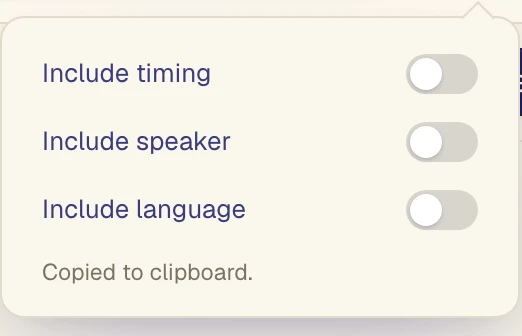
Copy options: Include timing (1), Include speaker (2) and Include language (3), all off here. Turn on Include speaker (2) to tell questions from answers.
When Verli is the wrong tool
Verli runs on a computer: the web app, the Mac app (macOS 14.2 or later) and the Windows app (64-bit Windows 10 version 2004 or later). Phone apps are coming soon. It cannot hear the audio inside your phone, and it is not an earpiece or a translator device.
For a phone interview, ask whether a video call is possible, or ask for written questions as an accommodation. If it has to be a phone call, the phone call guide shows how to run it through your computer. For an in-person interview, a laptop microphone hears the room less clearly. Ask the interviewer before you set a laptop on the table to listen.
For immigration, visa or legal interviews, ask whether an official interpreter is provided. Verli is no substitute for one. If you are deaf or hard of hearing, you can ask the employer for a formal accommodation such as a human captioner, often called CART. That request is separate from any app you use.