Phone call guide
How to translate a phone call on your computer
To translate a phone call on your computer, run the call through an app on your Mac or PC and turn on both Desktop audio and Microphone in Verli. Verli then gives you live translation of the call: what each person says, with the translation under each line, in real time.
If the call has to stay on your phone, put it on speaker next to the computer and use the microphone alone. Verli does not place calls and never speaks into one. The other person hears nothing from Verli and does not need to install or join anything.
If you were hoping to do this on your phone
Verli has no phone app yet. Phone apps are coming soon. It also cannot hear your phone's audio directly. It hears only what your computer plays and what your computer's microphone picks up.
Some newer phones can translate calls in their own calling app, for certain languages and in certain countries. Your phone maker's help pages say whether yours can. There are also apps that dial a number for you and speak a translation to the other person. Verli does neither.
Use Verli when you are at a desk and want to read both sides of the call as text. The phone call translator page shows what that looks like. This guide walks through the setup.
What you need
Verli on a computer. The web app runs in your browser. Call audio from your computer works best in Chrome, and the microphone works in any modern browser.
The Mac app needs macOS 14.2 or later. Get it from the Mac App Store as "Verli Live Translation", or as a direct download from the download page. The Windows app needs 64-bit Windows 10 version 2004 or later. It comes from the Microsoft Store, also linked on the download page.
A Verli account. New accounts get 60 minutes upon sign-up, with no credit card.
Headphones or a headset, unless you are using the phone on speaker.
A call you can hear on the computer, or a phone that can go on speaker.
Tell the other person before you start
Laws on recording and transcribing calls differ by place, including where the other person is. Some require everyone on the call to agree. Employers and some offices have their own rules. Tell the other person that you are transcribing the call, and get their agreement where the law or your employer requires it. Verli's terms make the person who starts the recording responsible for this. This guide is not legal advice.
Before your first recording, Verli shows a Ready to record? notice about access on your own computer. Recording starts only after you choose Continue and approve access. The notice does not tell the other person anything.
Pick the setup that matches your call
The call runs in an app on your computer. This gives the cleanest audio. It covers Zoom, Teams, WhatsApp on the desktop, a phone service in a browser tab, and softphones. A softphone is a phone app that makes calls over the internet from your computer. Follow setup A.
The call stays on your phone. Put it on speaker beside the computer and follow setup B. It works, but the microphone also hears the room, so expect more mistakes than in setup A.
An interpreter joins the call. Use whichever setup fits how the call reaches you. Verli transcribes the interpreter too. The section on interpreters below covers how to use the text.
Someone else needs to follow along. On Standard and Premium plans, you can send a live share link, for example to a relative who is helping you. They need no account and see the call's two languages. Shared data is deleted after 24 hours.
Setup A: the call plays on your Mac or PC
Headphones matter on calls because Verli does not cancel echo on the microphone. With laptop speakers, your microphone also hears the other person coming out of the speakers. Headphones keep each voice on its own path.
The Mac and Windows apps also have Read aloud, a paid feature that speaks the translation on your own speakers or headphones. It never plays into the call. Use it with headphones only. Through laptop speakers, your call app's microphone may pick up the spoken translation and send it to the other person. On a Mac, Read aloud also lowers the call sound. If you set a Playback delay, you hear the caller that much later too.
If the browser shows no system audio switch, which is common on a Mac, use the Mac app instead. The audio source help page has the full steps for each platform. Recording system audio on a Mac explains the macOS permission, and capturing audio from a Chrome tab explains tab sharing.
- Plug in headphones or a headset. Set your call app to use them for sound and for your voice.
- In Verli, open the Audio source menu from the pill beside the record button.
- Turn on Microphone for your own voice. Leave it on System default, or pick your headset by name.
- Turn on Desktop audio for the other side of the call. The pill now reads Mix.
- Mac app: Verli hears everything your Mac plays, so there is no window to pick. The first time, macOS asks for System Audio Recording access. Allow it.
- Windows app: when recording starts, choose any screen. Make sure the call plays through an output device that is on in Windows, such as your headset.
- Web app: when the browser asks what to share, choose Chrome Tab, click the tab with your browser phone service, and turn on Also share tab audio. For a call app outside the browser, choose Entire Screen and turn on Also share system audio. Skip Window, since the browser shares no sound from it.
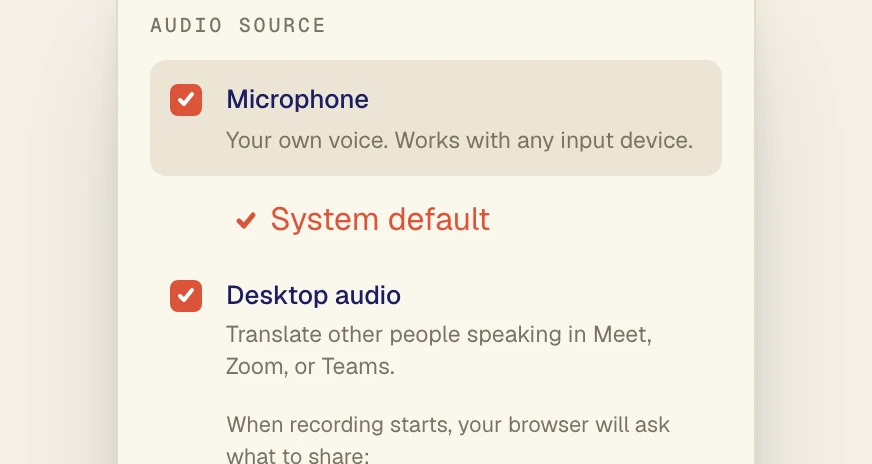
Microphone (1), set to System default, and Desktop audio (2) are both checked. This is the web app menu, so it notes that the browser will ask what to share when recording starts.
Setup B: the phone sits on speaker next to the computer
Both voices go into one microphone. Verli separates speakers automatically and numbers them, which usually helps you tell the lines apart. With both voices coming from one spot, it can still mix them up now and then. Headphones do not help here, because the caller's voice has to come out of the phone's speaker for the computer to hear it.
If you can move the call to your computer, even by calling back from a desktop app, do it. Setup A gives better text.
- In Audio source, turn on Microphone and turn off Desktop audio. The pill reads Mic.
- Put the phone on speaker, close to the computer's microphone, with the volume up.
- Turn off the TV, music and anything else making noise in the room.
- Speak toward the computer as well as the phone, so your voice reaches the same microphone.
Choose the two languages
Click the language pill to open Choose Languages. Pick the caller's language under Language 1 and yours under Language 2, or the other way round. Verli translates both ways. It detects which language each person is speaking, so you do not switch anything during the call.
If someone uses a third language, such as a recorded greeting, Verli may leave it untranslated.
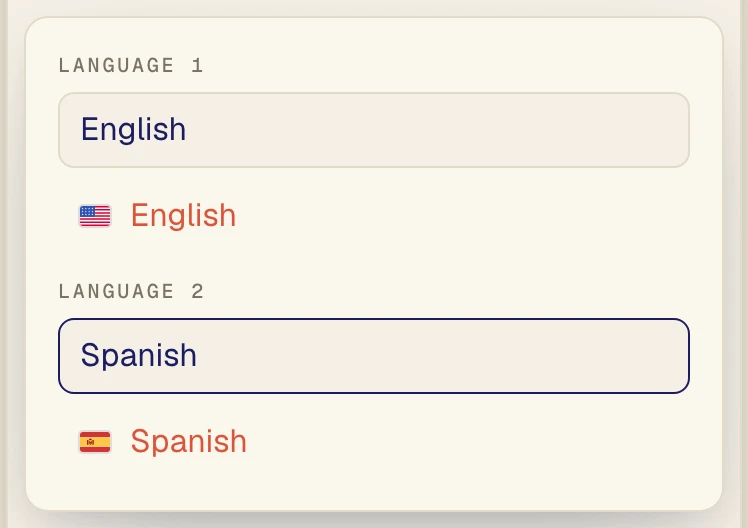
An example pair: English as Language 1 (1) and Spanish as Language 2 (2). Use the two languages on your call.
Check both voices in the first minute
On calls, the usual failure is a transcript with only one person in it. A one-minute check at the start catches it.
- Check the pill before you start. It should read Mix for setup A or Mic for setup B. Then start recording.
- Say a short sentence, like your name. Check that your line appears.
- When the other person answers, check that their line appears too, with the translation under it.
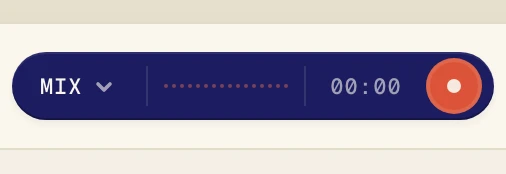
The pill shows Mix, so Verli captures both your voice and the call audio. The record button (1) starts the session.
If only one side shows up
Only your voice appears. Desktop audio is off, or the call is playing through a device that is muted or off. In the Mac app, check that System Audio Recording access is allowed for Verli in System Settings. In the web app, you may have shared without audio or picked Window. Stop recording, fix it, and start again.
Only the other person appears. Microphone is off, or Verli is listening to the wrong microphone. Open Audio source and pick your headset by name. The microphone help page has more fixes.
Nothing appears at all. Work through no text appears. On a phone on speaker, raise the phone's volume and move it closer to the computer.
Hold music, phone menus and recorded greetings
Minutes count the whole time recording is on. That includes silence, hold music and phone menus. Verli has no pause button.
If you can get through the phone menu ("press 1 for billing") on your own, do that first and start recording when a person answers. If you cannot follow the menu, start recording right away and read the prompts as they come.
Recorded greetings like "this call may be recorded" get transcribed like anything else. Skim past them. Music and long quiet stretches can also make Verli write words nobody spoke. Ignore any text that shows up while you are on hold.
On a long hold, stop recording. Press record again as soon as you hear a voice. When the call ends, stop recording in Verli too. Hanging up in your call app does not tell Verli the call is over.
Calls with an interpreter, and how far to trust the text
On a three-way call with an interpreter, Verli transcribes everyone, the interpreter included. Use the text to follow along and to catch names, dates, phone numbers and amounts you might mishear. It does not replace the interpreter.
Phone audio, accents and people talking over each other all cause mistakes. Double-check names, numbers and anything you will act on. For medical, legal or money decisions, rely on a professional interpreter and treat Verli's text as your own notes.
After the call
Saved calls appear in History. To paste the text into your notes, use Copy transcript. You can turn Include timing, Include speaker and Include language on or off.
Verli does not store raw audio after the session ends. It saves the text to your account by default. To stop this, turn off Save meeting transcripts in Settings. The change applies to new recordings only, and it covers all recordings, not just one call.
You cannot delete a single saved call in the app. Saved calls stay in History until you delete your account. The privacy policy explains what Verli keeps. If a call will include card numbers, an address or health details, turn saving off before you start. Turn it back on afterward if you want later calls saved. Verli does not use your audio or transcripts to train AI models.