Fix microphone problems
If Verli can't hear your voice, or shows a microphone error, go through these checks in order.
Which Verli are you using?
Showing steps forWindows appMac appChrome extension or browser
Allow microphone access in Windows
If Verli says Windows blocked microphone access, Windows privacy settings are stopping it.
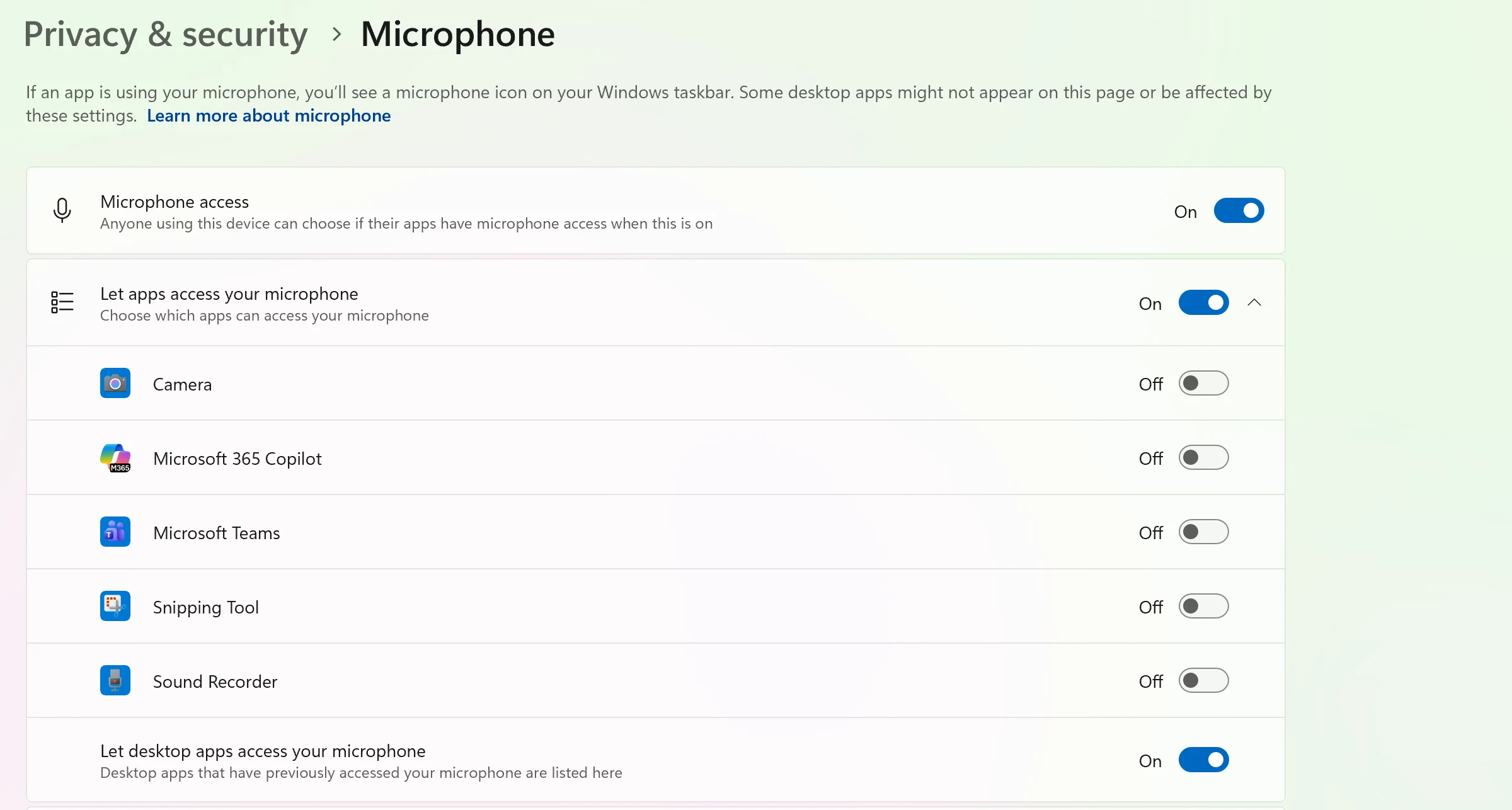
Open Windows Settings > Privacy & security > Microphone.
Turn on Microphone access, Let apps access your microphone, and Let desktop apps access your microphone.
Close Verli completely and open it again.
Allow microphone access on your Mac
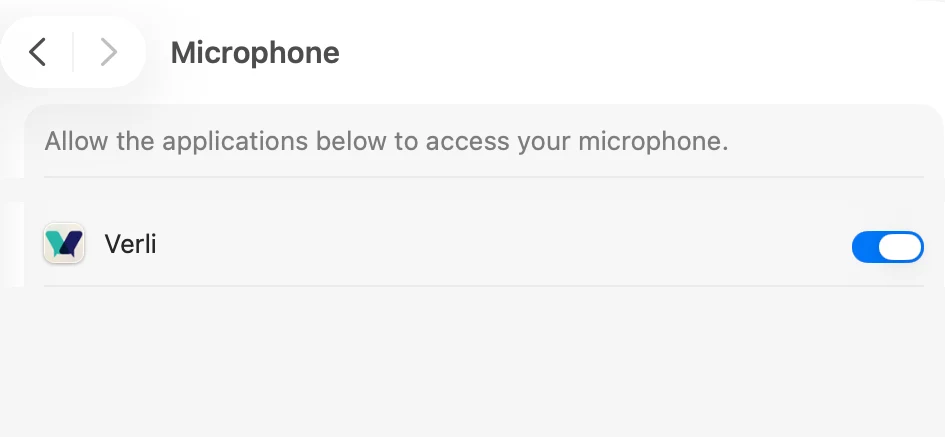
Open System Settings > Privacy & Security > Microphone.
Find Verli in the list and turn it on.
Quit Verli and open it again.
Allow microphone access in Chrome
When Verli starts recording, Chrome asks to use your microphone. Click Allow.
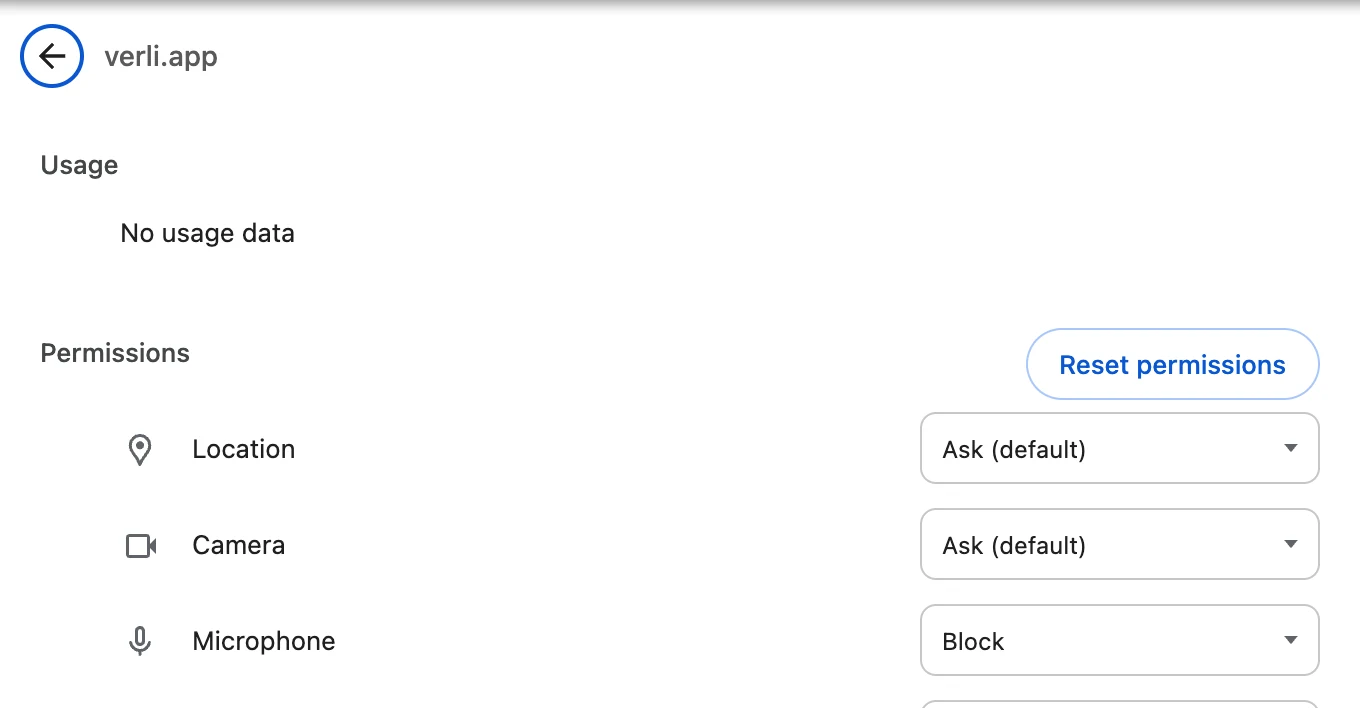
If you clicked Block before, click the icon at the left end of the address bar, then Site settings.
Next to Microphone, choose Allow. Then go back to Verli and reload the page.
Also check that Chrome itself can use the microphone: on Windows in Settings > Privacy & security > Microphone, on Mac in System Settings > Privacy & Security > Microphone.
Pick the right microphone
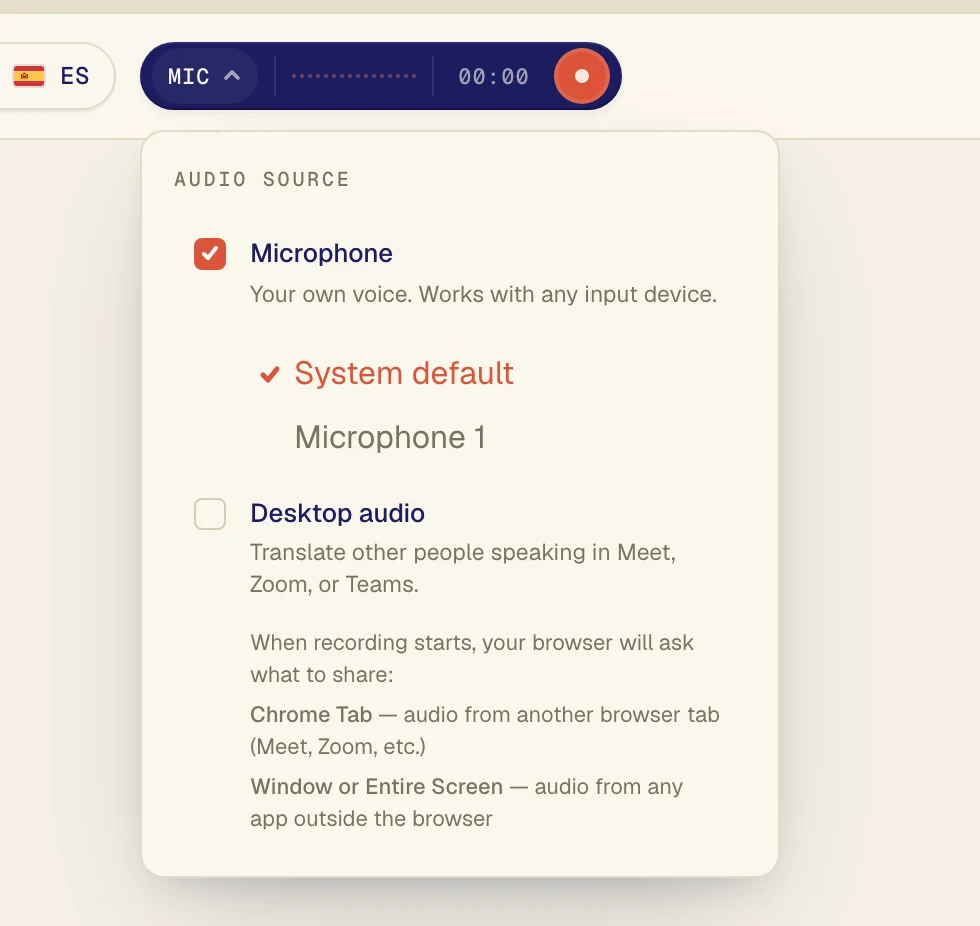
Click the dark pill next to the record button to open the Audio source menu.
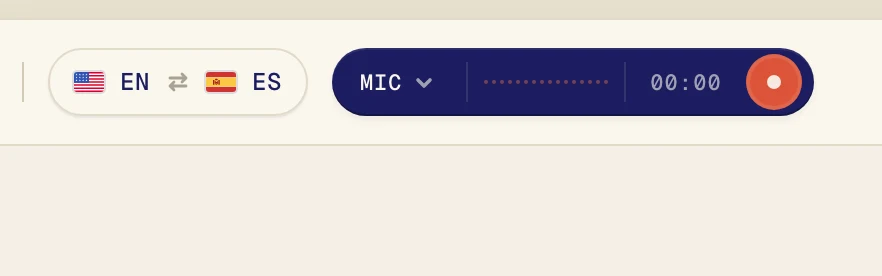
Make sure Microphone is checked, then pick your microphone in the list under it. System default uses the one your computer is set to. If you use a headset, pick it by name.
Check the microphone itself
Make sure it isn't muted. Many headsets have a mute switch or button.
Close other apps that may be using the microphone, like another call app, and try again.
If Verli says No sound detected from your microphone yet, it can't hear anything from the selected microphone. Try picking a different one in the list.
Want to translate sound from your computer?
The microphone is for voices in the room. To translate a video or call that plays on your computer, turn on Desktop audio instead.
Still stuck?
Send us a message from the support page. Tell us which Verli you use and what you see on screen, and we'll help you sort it out.
Contact support